Get started
First sign-in
The first visit asks for a password, then for a short brief about you, which every agent keeps in memory. After that you check that your agents have a model and you are ready to work.
1. Set your password
- Open
http://127.0.0.1:8830in your browser. You see Set password. If you see "JARVIS is not answering" instead, the server is not running: see Install and service problems. - Type a password of at least 8 characters and press Set password. This is the one password for JARVIS Ultra. There is no username.
You stay signed in on this browser for 30 days. After that, or after Sign out in the top bar, the Login screen asks for the same password; press Sign in.
2. Tell the team who you are
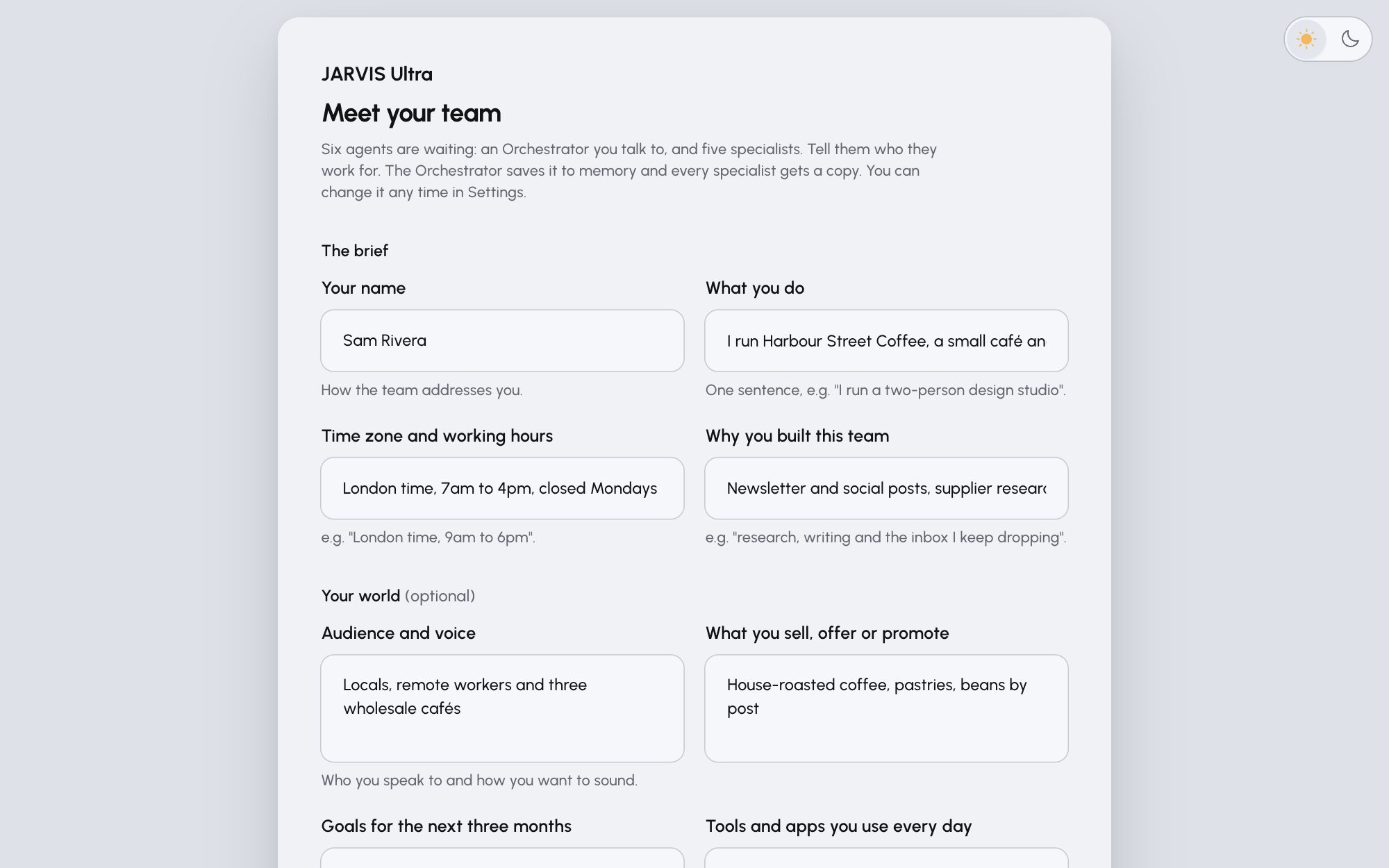
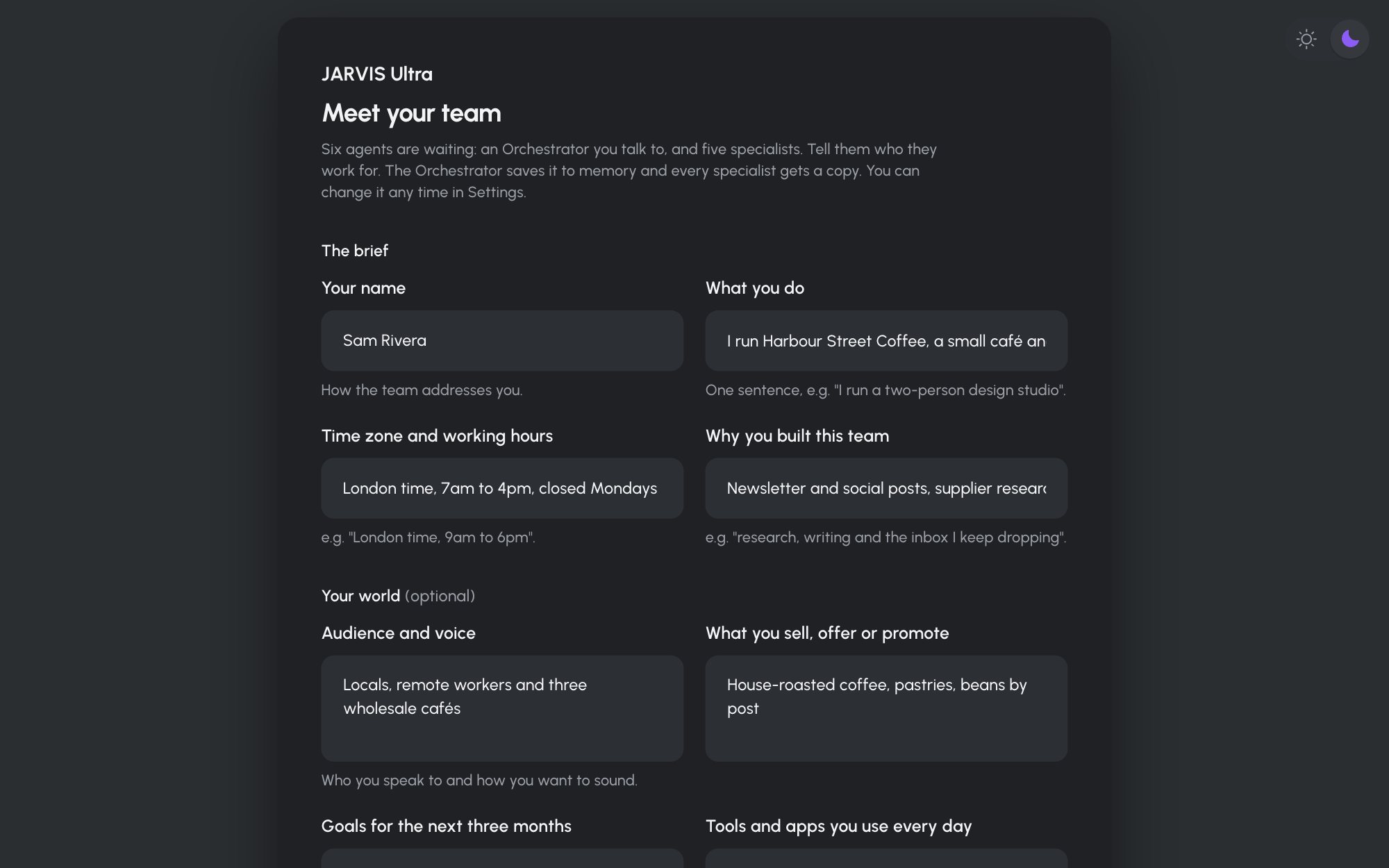
Next comes Meet your team. What you write here goes into every agent's memory, so their answers fit your work.
-
Fill in the four fields under The brief. For example:
Field Example Your name Sam RiveraWhat you do I run Harbour Street Coffee, a small café and roastery in Brighton.Time zone and working hours London time, 7am to 4pm, closed MondaysWhy you built this team Newsletter and social posts, supplier research and the inbox I keep dropping -
The fields under Your world (optional) help the agents write in your voice: Audience and voice, What you sell, offer or promote, Goals for the next three months, Tools and apps you use every day, People you email or message most and What must never be interrupted. Fill in what you like; you can add more later.
-
Press Save and brief the team. Every agent gets the brief at once. The Orchestrator also reads it in one model turn, which spends a little of your provider's credit and takes up to a minute. The dashboard opens on Home straight away.
If you have not signed in to a model provider yet, press Skip for now instead, do step 3 below, then send the brief from Settings > General, card Owner, with Save and brief the team. Under the button you then see "Briefing the Orchestrator…", and then "Team briefed" with the time.
3. Check your provider and models
-
Open Settings > Models. The first section is Providers.
-
Look for a card with the status Ready.
- If you signed in with
hermes modelorhermes auth addduring the install, the card says Signed in through Hermes. It works as it is. For an API key, Move the key here brings it onto this page, so Test, Replace key and Remove work for it. - If you see No provider yet, press Add provider, pick your provider (for example Anthropic), paste your key (for example
<your-anthropic-key>) and press Test and save. The card shows "Giving the key to N agents…" for a few seconds, then Ready. If the key is refused, the sentence under the field says why and nothing is saved. See Add a model provider.
- If you signed in with
-
In the second section, Models for the team, check the card Use this model and effort for every agent. To give every agent the same model, pick it under AI model, pick an Effort, and press Apply to all N agents. Each agent's own model and fallback are in its drawer on Team (Choose each agent's model).
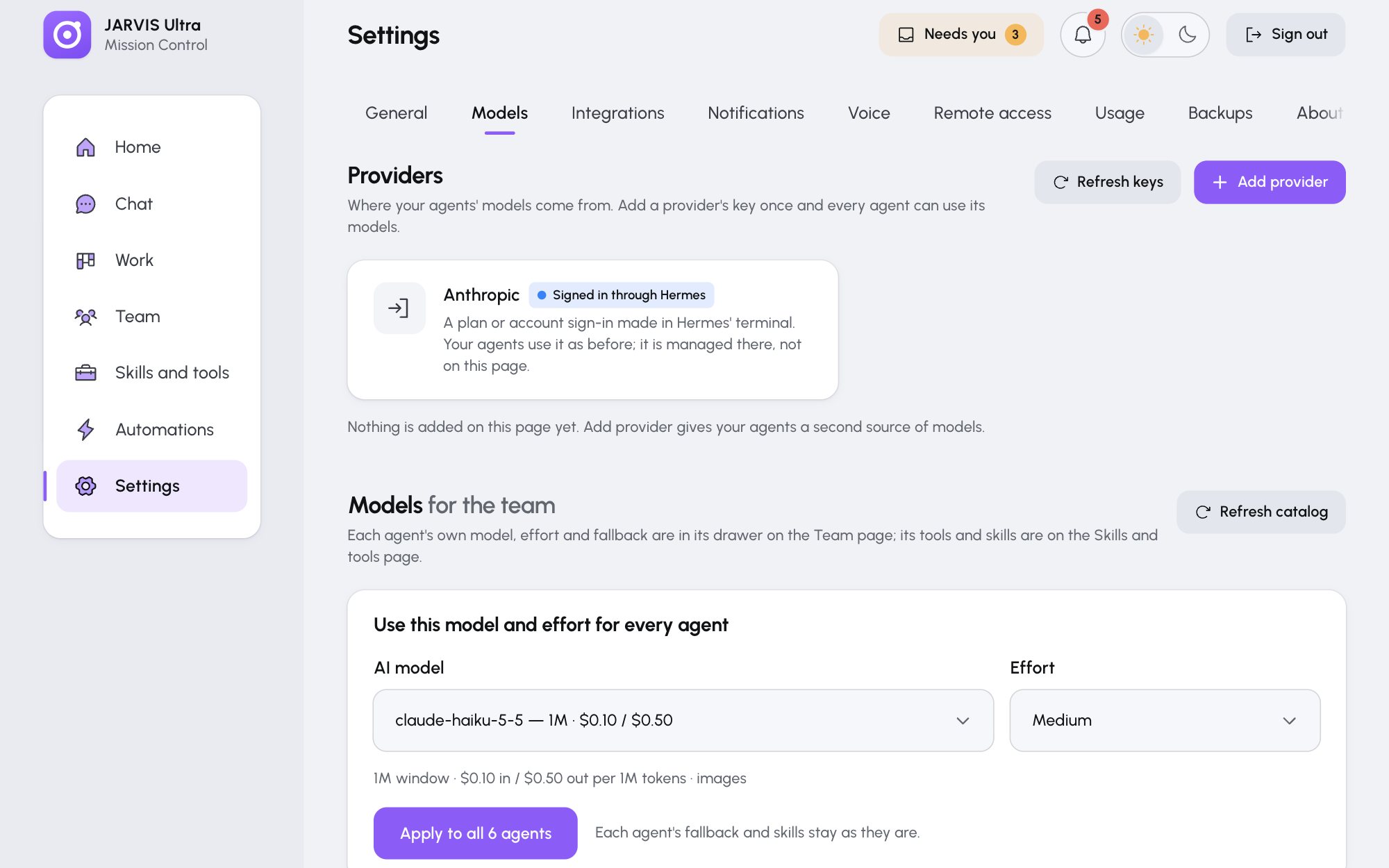
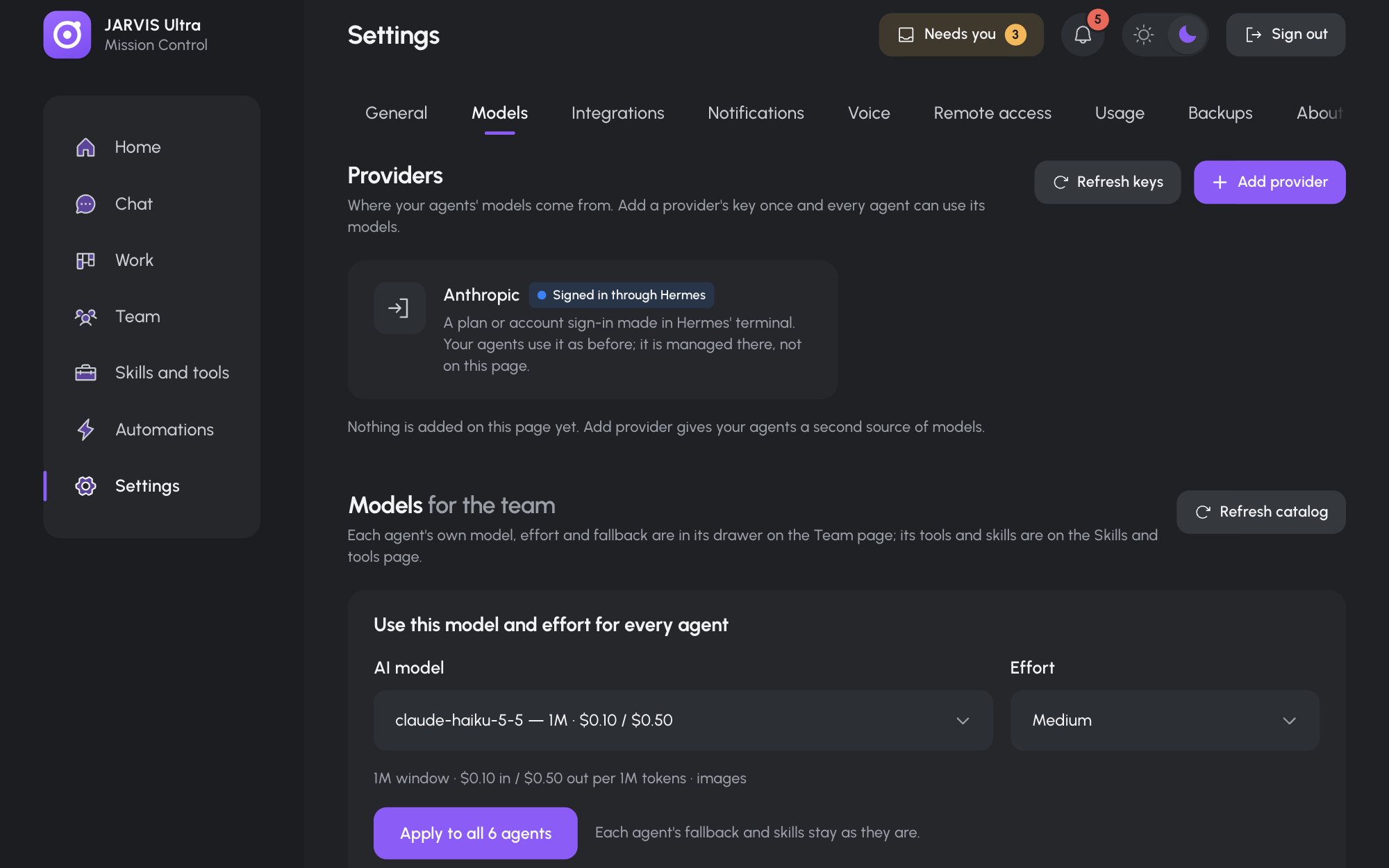
Settings > Models: a provider signed in through Hermes, and Models for the team below it.
4. Meet the team
Open Team. The Office tab shows your agents in a 3D office, and the Agents tab lists them as cards with their role, model and status. A fresh install has the Orchestrator and five specialists. If the list is empty or says to run scripts/create-team.sh, the installer has not created the team yet: run ./install.sh (or .\install.ps1) again.
Next
Take the Quick tutorial, or read A tour of the dashboard first.