How-to guides
Connect apps through Composio
Agents reach your Gmail, Google Calendar, Slack and other apps through Composio, a service that holds the app sign-ins. You decide which agents may use each app and whether their changes need your approval first.
The apps on offer: Gmail, Google Calendar, Google Tasks, Google Docs, Google Sheets, Google Drive, Google Meet, YouTube, Slack and GitHub.
1. Add your Composio key
- Sign in to the Composio dashboard, switch to Platform, then open Settings, Project Settings, API Keys, and copy a project key. It starts with
ak_. - In JARVIS Ultra, open Settings > Integrations.
- Paste the key in Project API key (for example
<your-composio-project-key>) and press Save key. The dashboard checks the key with Composio and keeps it indata/composio.key. The card then shows you as signed in.
A key that starts with uak_ (the one Composio's command line saves) or ck_ (the Connect key under For You) does not work here; the card says so. Sign out removes the key.
2. Connect an app
- Open Skills and tools and choose the Apps tab.
- Find the app (Search apps, or filter by Category) and press Connect.
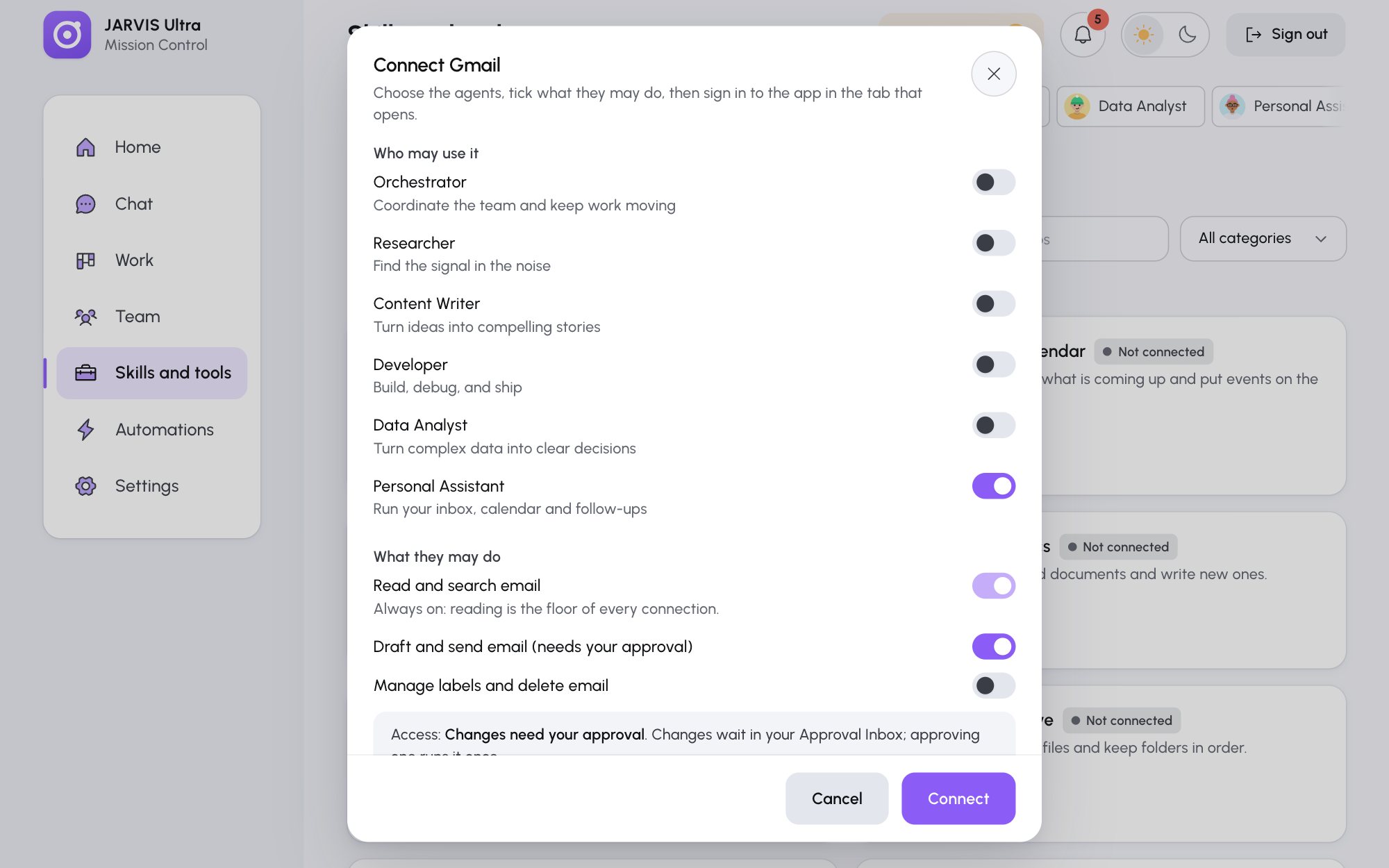
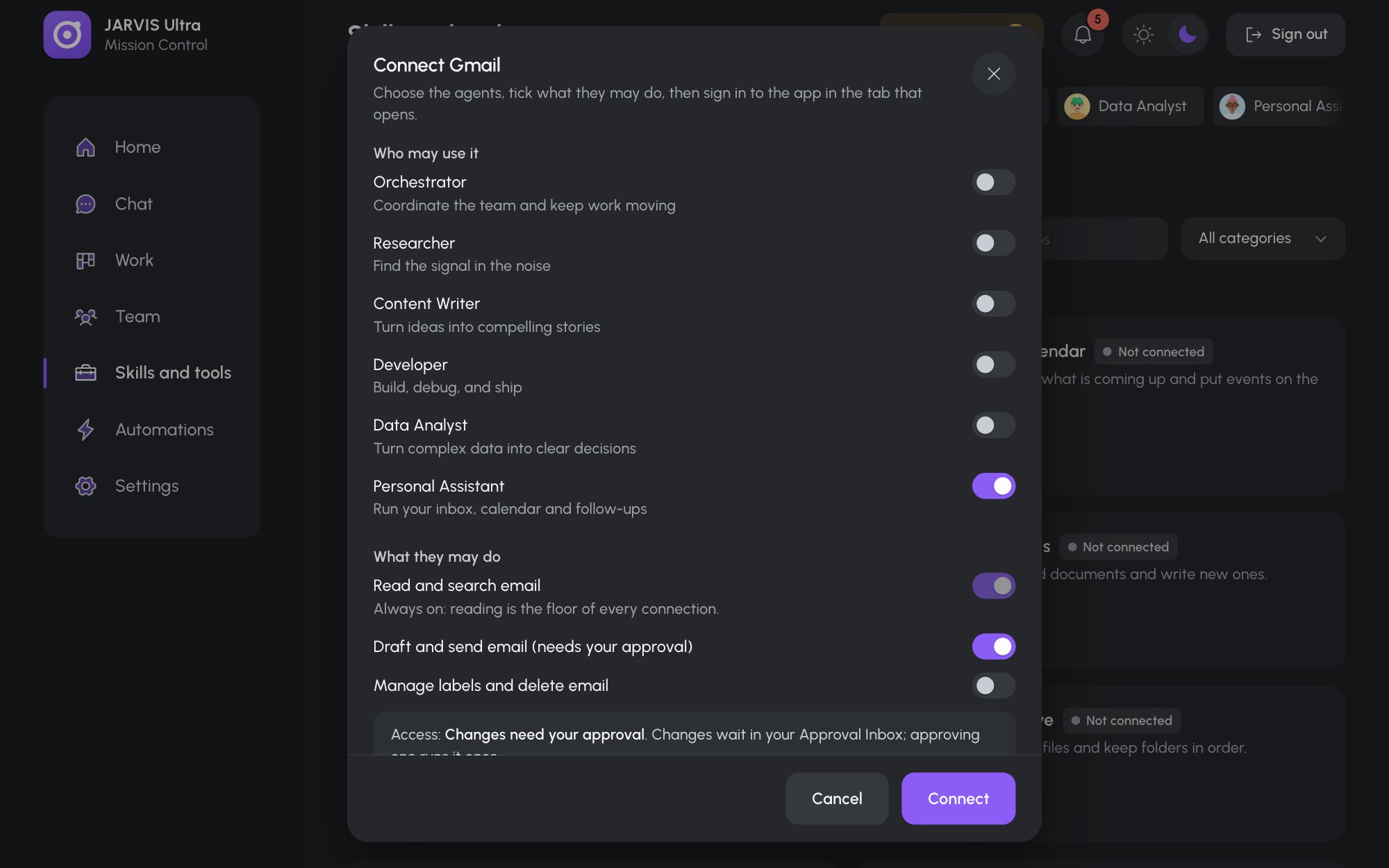
- In the dialog:
- Under Who may use it, switch on each agent that may use the app, for example the Personal Assistant for Gmail.
- Under What they may do, tick what the agents may do. Each app has three levels; the first (reading) is always on. For Gmail they are "Read and search email", "Draft and send email (needs your approval)" and "Manage labels and delete email".
- The access line under them sums it up: Read only, Changes need your approval or Full access.
- Optional: Name on the cards, for example
Café Gmail.
- Press Connect.
If the app is not signed in at Composio yet, a Finish connecting Gmail card appears on Home and the app shows Needs your sign-in. Press Open the sign-in, sign in to the app in the new tab, and the card clears on its own within a minute. The app then shows Connected.
What access means
| Access | What the agent may do |
|---|---|
| Read only | Read, search and list. Any change is refused. |
| Changes need your approval | Read freely. A change (sending, creating, deleting) arrives in your Decision queue as a Tool call card first; approve it and the agent runs that exact call. |
| Full access | Read and change without asking |
Start with Changes need your approval: you see every send before it happens, and you can widen access later. How this works is in The tools lock.
Change, pause or disconnect an app
On the app's card:
- Assign agents reopens the dialog to change who may use it and what they may do.
- Pause stops every agent from using it until you press Resume.
- Disconnect forgets the app here at once, without asking. Its account stays in Composio until you remove it there.
If an app's sign-in expires or is removed at Composio, its card changes back and a Sign in to Gmail again card appears on Home.
An agent's drawer on Team lists its apps under Skills and tools; Change access jumps to the app's dialog here.