How-to guides
Get alerts on your phone, browser and Telegram
The bell in the top bar shows events while you are looking at the dashboard. Alerts reach you when you are not: in your browser, on your phone, or in Telegram.
What sends an alert
- Anything waiting for your decision: a draft, a mission plan or result, an automation result, a sign-in card. The alert says "Agent needs you" with what it is.
- A failure: a job, rule or mission that failed, an agent error, a backup that failed.
A finished mission or job only rings the bell, unless it waits for your review. At most five alerts go out at once, then "N more need you". Tapping an alert opens the item. Items already waiting when the server starts never alert again.
Choose the channels
-
Open Settings > Notifications. The first card is Alerts.
-
Switch on the channels you want: Browser, Phone and Telegram. Each says how many devices are allowed.
-
Press Save.
-
Press Send a test alert. The sentence under it says what was sent, or why not ("Quiet hours are on…", no channel on, no device allowed yet).
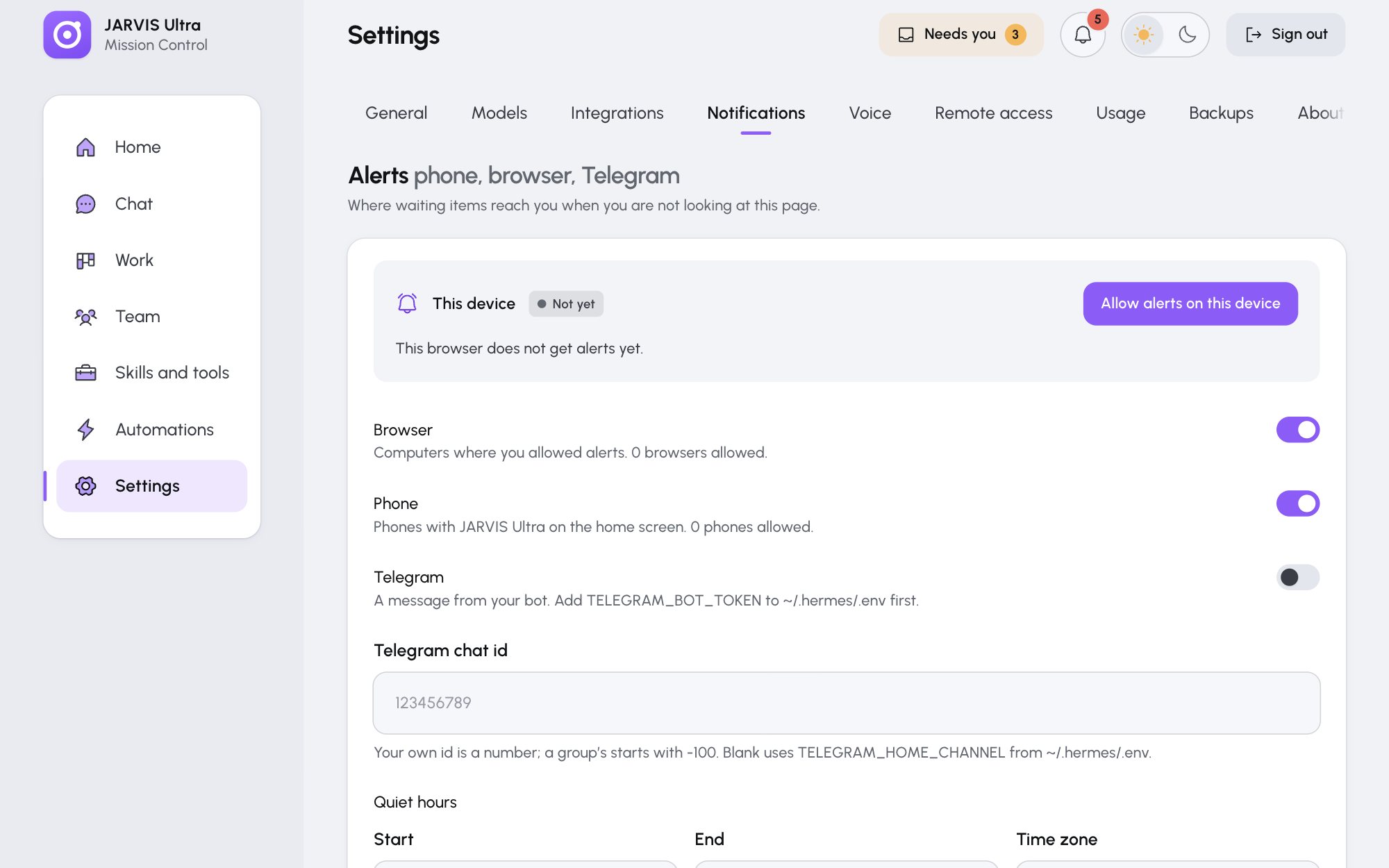
The Alerts card in Settings > Notifications, with Allow alerts on this device at the top.
Allow this computer's browser
On the computer that runs JARVIS Ultra, open Settings > Notifications, press Allow alerts on this device and accept your browser's question. Stop alerts here undoes it.
Allow your phone
Phones only get alerts from the dashboard on https, which Remote access with Tailscale gives you. Set that up first.
- On the phone, open the dashboard's Tailscale address and sign in.
- Add it to the home screen. On iPhone and iPad: tap the Share button, then Add to Home Screen, then Add. On Android: tap the ⋮ menu, then Install app (or Add to Home screen).
- Open JARVIS from the home screen and sign in again.
- Open Settings > Notifications and press Allow alerts on this device.
The steps are also under Add to the home screen on the card.
Telegram
-
In Telegram, create a bot with @BotFather and copy its token.
-
Add the token to Hermes' settings file,
~/.hermes/.env(on Windows%LOCALAPPDATA%\hermes\.env), as one line:TELEGRAM_BOT_TOKEN=<your-bot-token> -
Open your bot in Telegram and press Start, so it may write to you.
-
In Settings > Notifications, fill in Telegram chat id: your own id is a number such as
123456789, a group's starts with-100. Left blank, alerts go toTELEGRAM_HOME_CHANNELfrom the same.envfile. -
Switch on Telegram, press Save, then Send a test alert.
If Telegram refuses, the test says why, for example "Telegram could not find chat 123456789. Open your bot in Telegram, press Start…". Rules can send their results to the same chat (Create a trigger rule).
Quiet hours
Under Quiet hours, set Start and End (for example 21:00 and 07:00) and, if it differs from Settings > General, a Time zone. Alerts are held during quiet hours and sent as one summary when they end, leaving out anything you decided meanwhile. Set both times, or neither.
Choose what rings the bell
The second card, Notifications, has a switch for each kind of event: Approval, Mission, Automation, Schedule, Backup, Tool sign-in, Agent error and Skill. A kind you switch off neither rings the bell nor sends alerts; what already arrived stays.