How-to guides
Run a mission
A mission turns a goal into steps, each carried out by one agent. You approve the plan before any step runs, and you can review the result before it is published. For how missions work underneath, see Missions and approvals.
Launch a mission
-
Open Work (the Missions tab) and press Launch mission.
-
Fill in Launch a mission:
Field What to enter Mission name A short name, for example Spring menu launch postGoal What done looks like, in your words. Name the format, length and audience: An Instagram caption and a 100-word newsletter paragraph announcing our spring menu, warm and local.Who picks the team? The Orchestrator chooses among the available specialists. I choose lets you tick the agents yourself. Time limit (minutes) 5 to 480 (default 60). The limit is checked between steps, so a long step can finish past it. Maximum steps 1 to 12 (default 4), one agent each I review the result before delivery On: the result waits for you as In review. Off: it is published in Docs as soon as the last step is done. 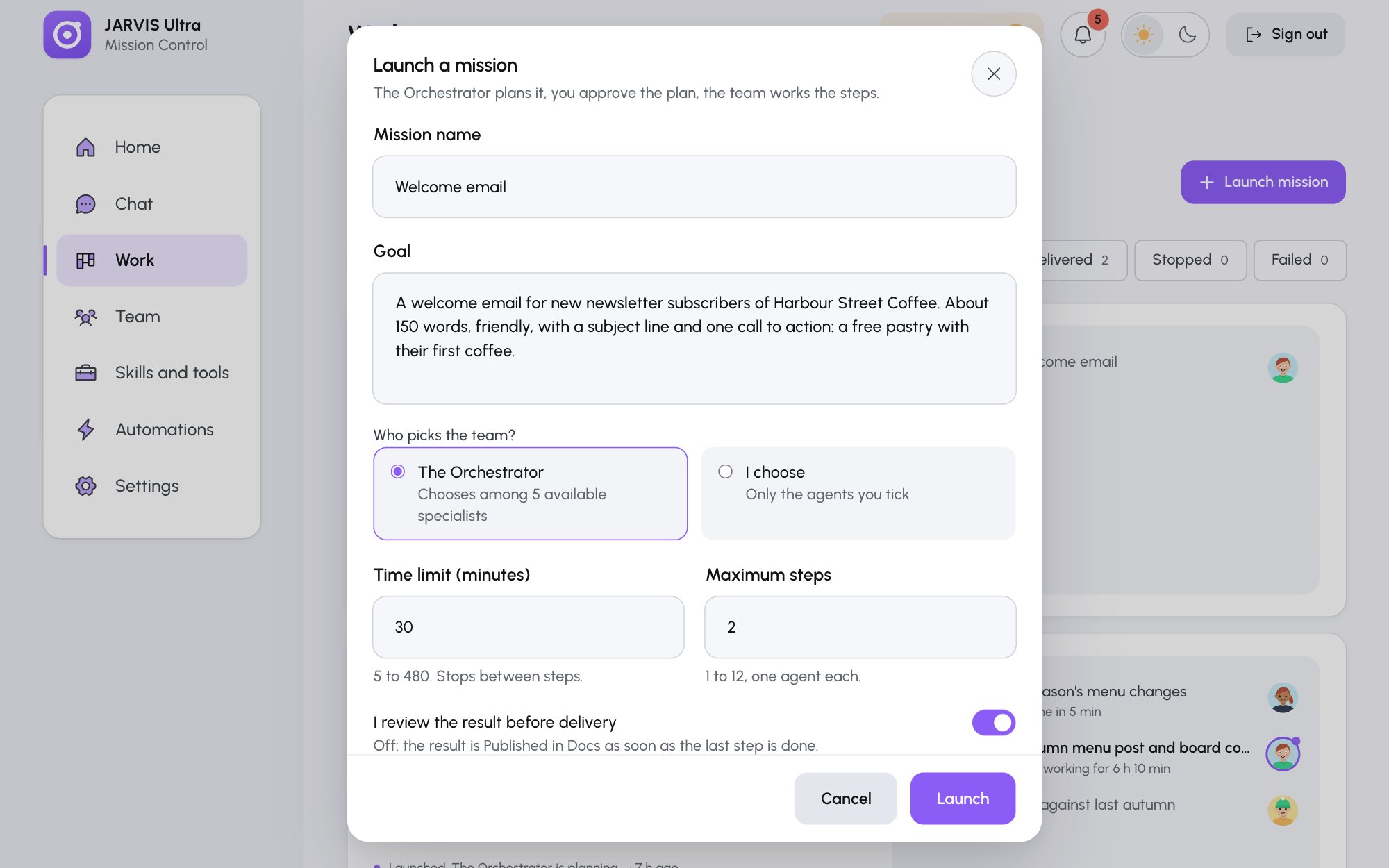
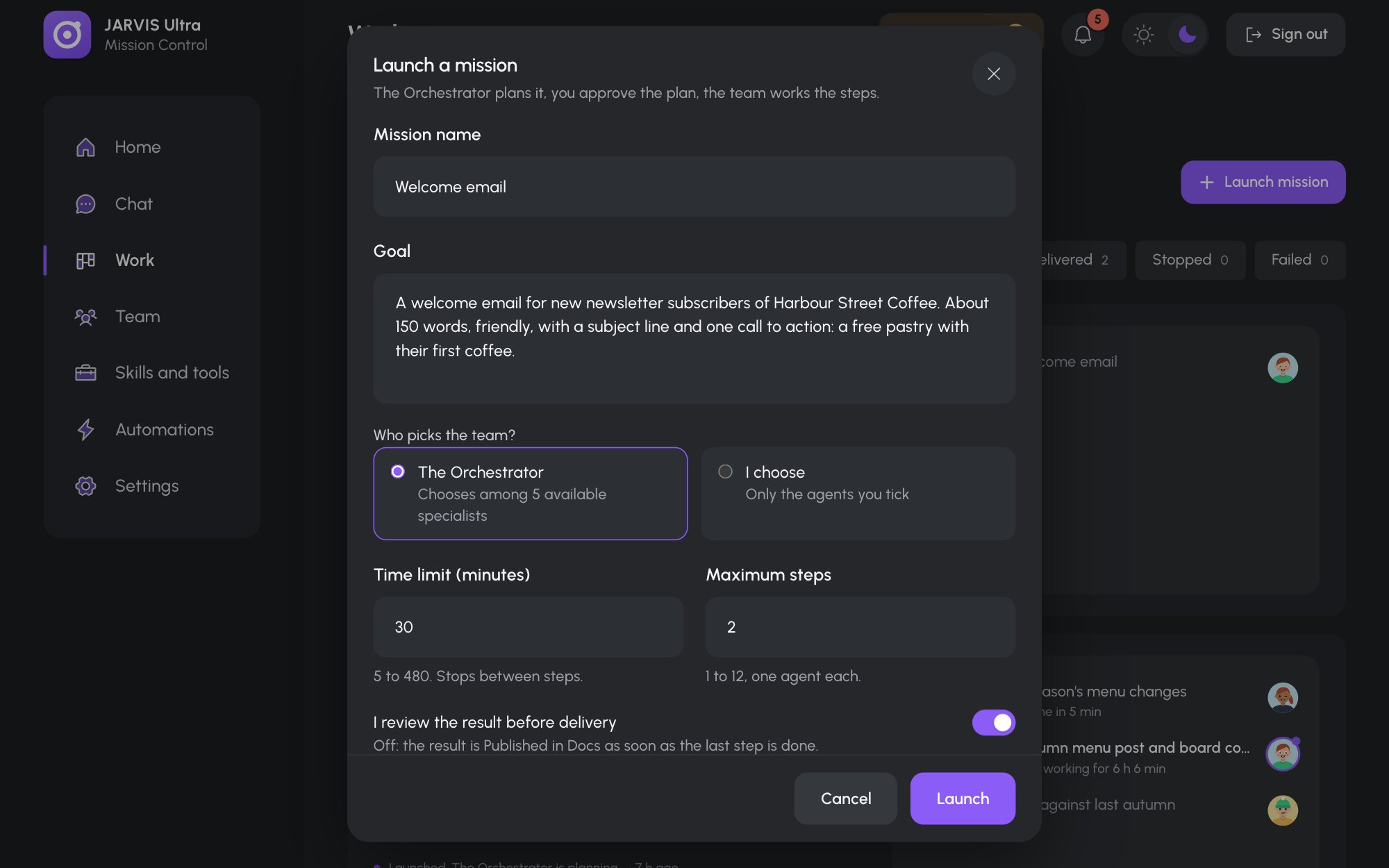
The Launch a mission form, filled in. -
Press Launch.
The mission starts in Planning: the Orchestrator writes the plan in one turn, usually within a couple of minutes. Each step after that is one turn by its agent, so a four-step mission spends about five turns of credit.
Approve, change or cancel the plan
When the status turns Awaiting approval, press Review plan on the card (or answer the Mission plan card on Home). The drawer shows each step, its agent and which step it waits for. Then:
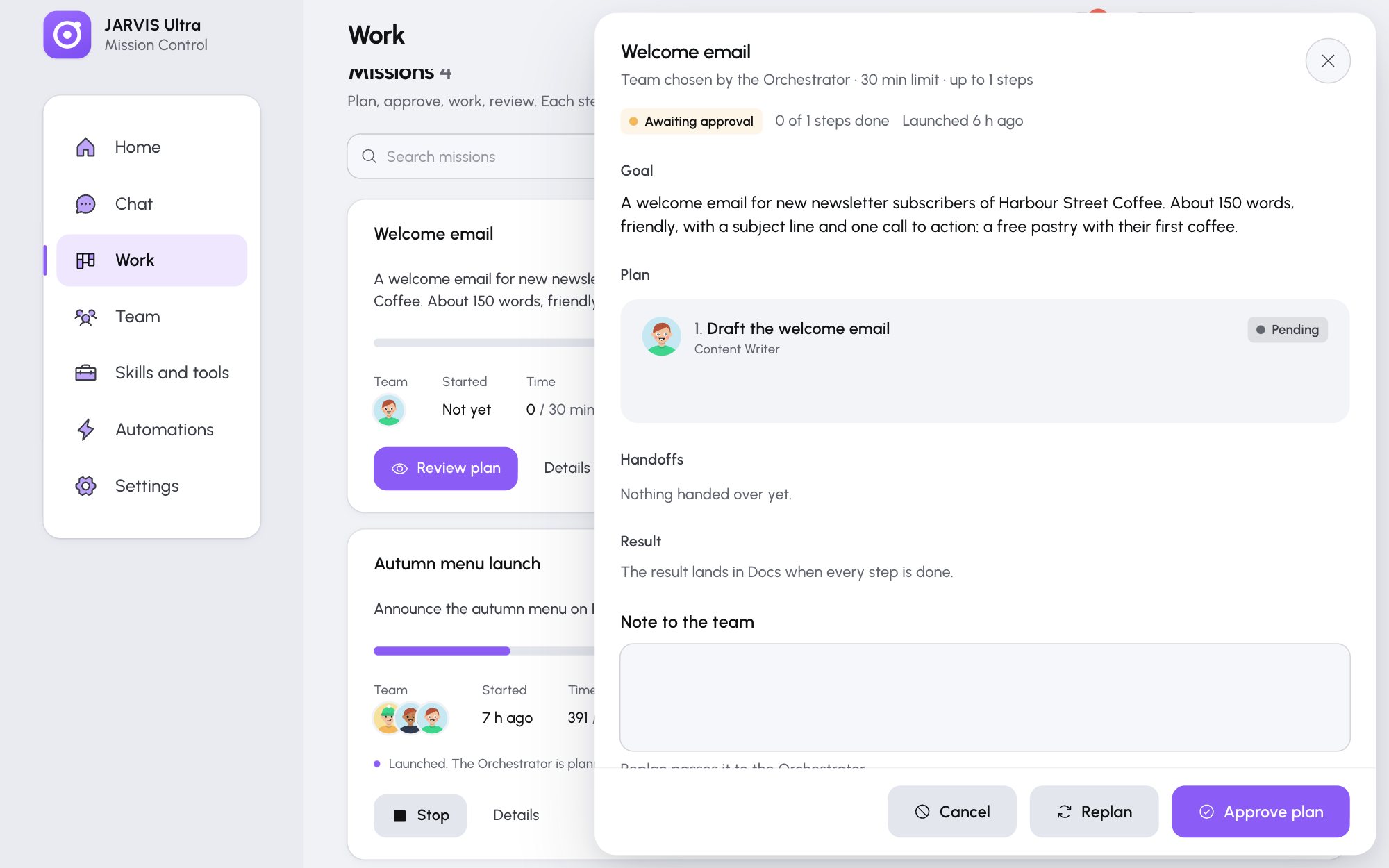
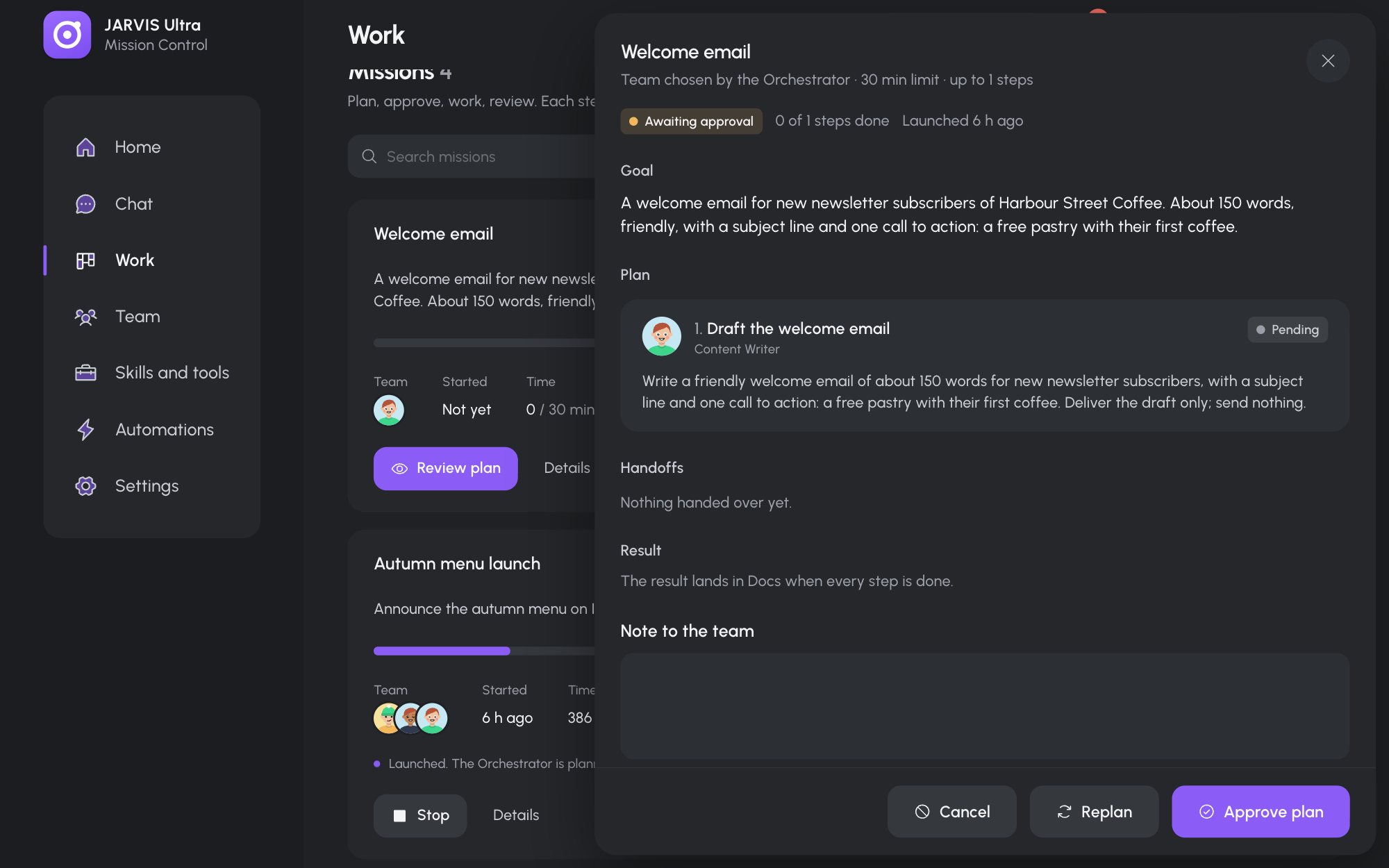
- Approve plan starts the work. The status turns Running.
- Replan sends the plan back to the Orchestrator. Write what should change in Note to the team first, for example
Ask the Researcher to check which spring dishes competitors have before the writing step. - Cancel ends the mission.
Follow the work
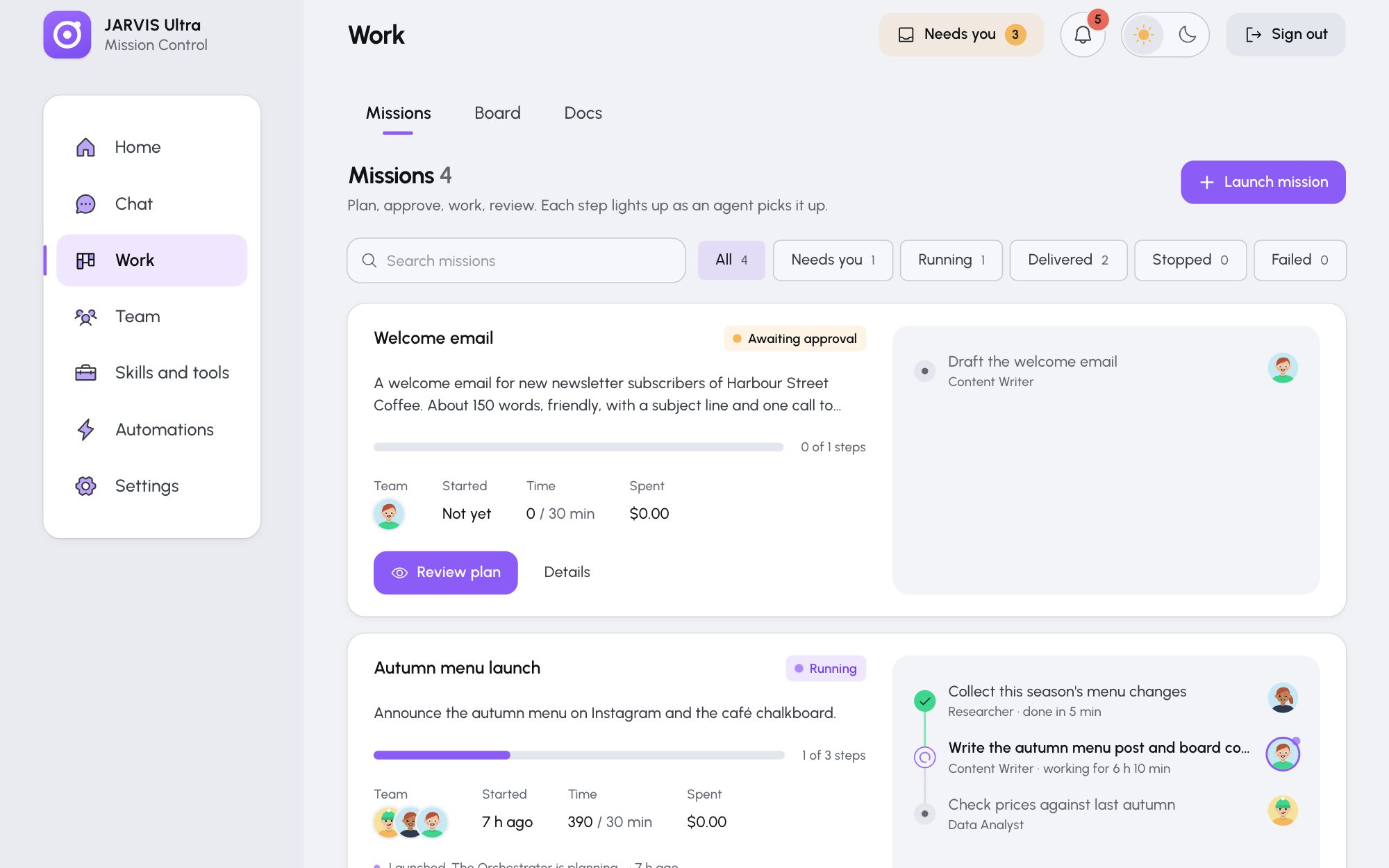
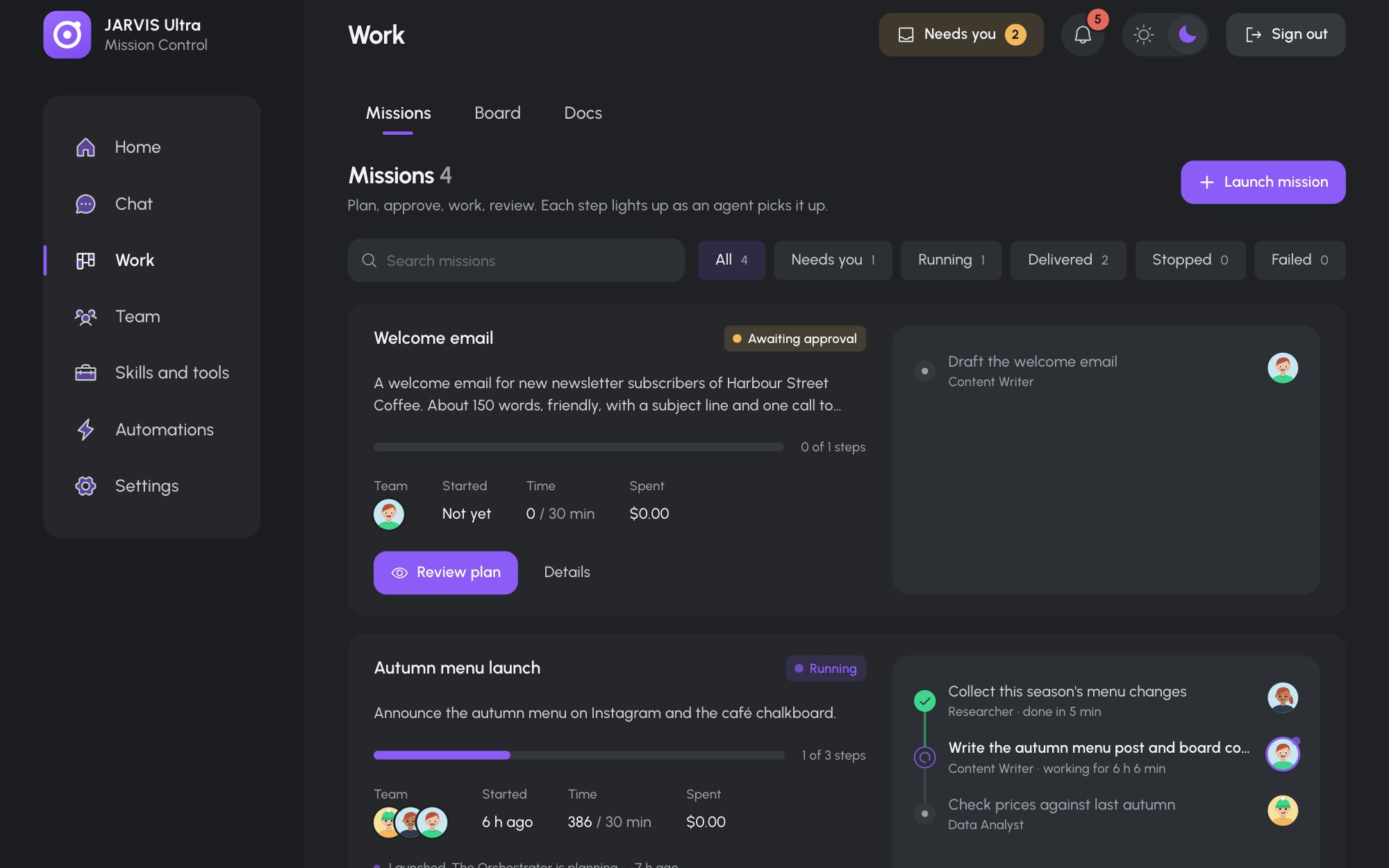
While a mission runs, its card shows a progress bar, "N of M steps", and the steps as a live checklist: the step in progress shows its agent's face and how long it has worked. Open the drawer (Details) for more:
- Plan: each step with its instructions and, once done, its Result.
- Handoffs: what each agent passed to the next.
- Timeline: every event with its time.
The card's Spent shows what the mission's turns have cost so far, and Time shows minutes used against the limit. Stop ends a running mission between steps and keeps what is done.
Review the result
With review on, the status turns In review when the last step is done, and a draft of the result is filed in Docs as a Mission result. Press Review result, read it with Open in Docs, then:
- Accept result publishes it. The status turns Delivered.
- Send back runs the last step again with your note (a note is required).
- Replan gives your note to the Orchestrator for a new plan.
From the Mission result card on Home you can also edit the text before you accept it; the edited text is what gets published.
Find, archive and delete missions
- The chips All, Needs you, Running, Delivered, Stopped and Failed filter the list; Search missions matches names and goals.
- Archive on a delivered, stopped or failed mission moves it under Archived. Unarchive brings it back.
- Only an archived mission can be deleted: Delete, then Delete for good?. Its result stays in Docs and its cost stays in Usage.
When a mission fails
The card says why. Common reasons:
| Message | What to do |
|---|---|
| "The Orchestrator's reply had no JSON plan in it." | Press Replan. A clearer goal helps. |
| "The time limit of N minutes ran out. Completed work is kept." | Replan with a longer Time limit, or fewer steps. |
| "Name was busy with other work for too long." | The agent was answering elsewhere for 10 minutes. Replan when it is free. |
| "The server restarted while the mission was running. Press Replan to start again." | Press Replan. |
More are in When an agent does not answer.