How-to guides
Chat with an agent or the team
Each conversation is with one agent, or with the Whole team, where the Orchestrator answers and hands parts of the work to specialists. Start as many conversations as you like; each keeps its own thread.
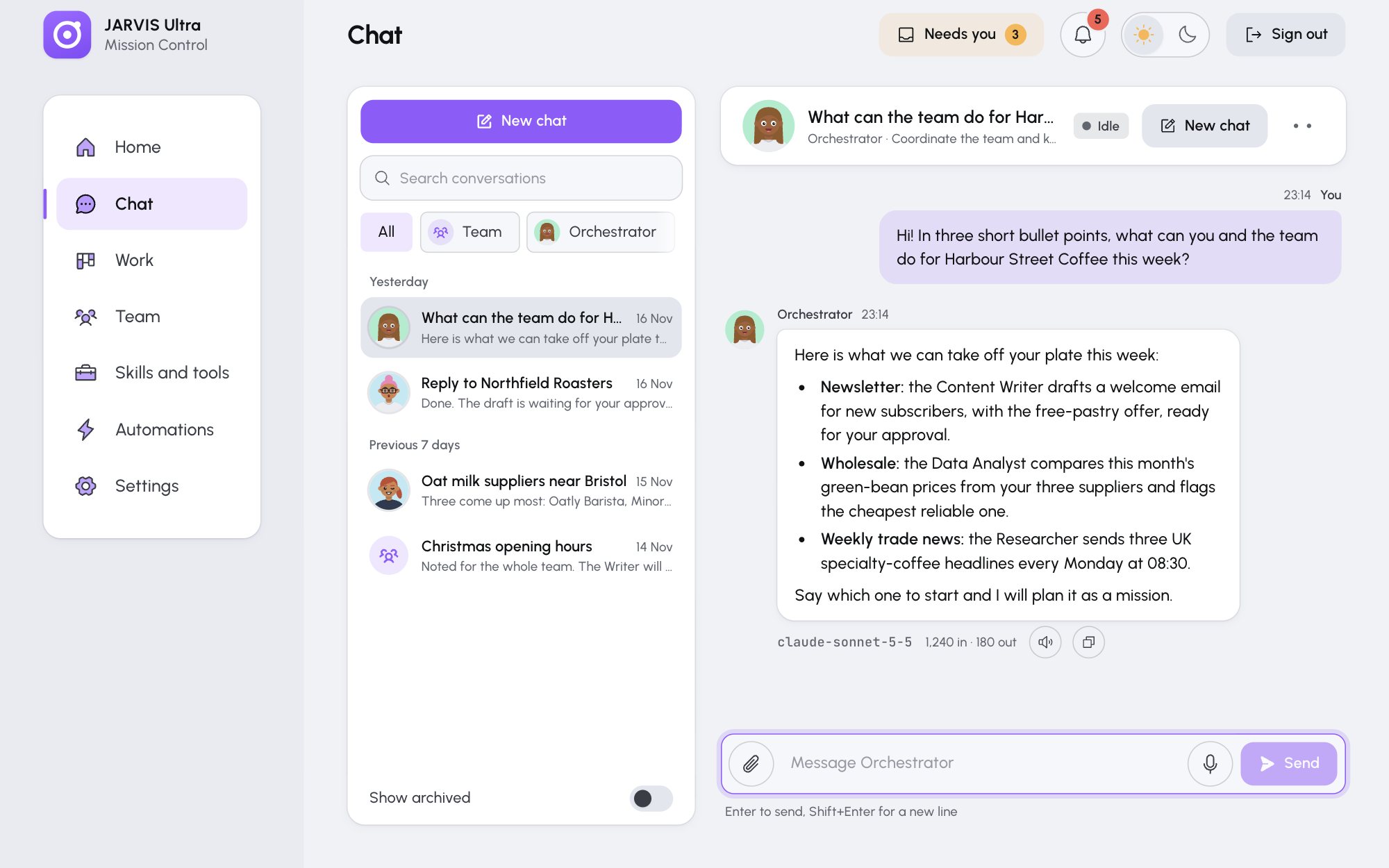
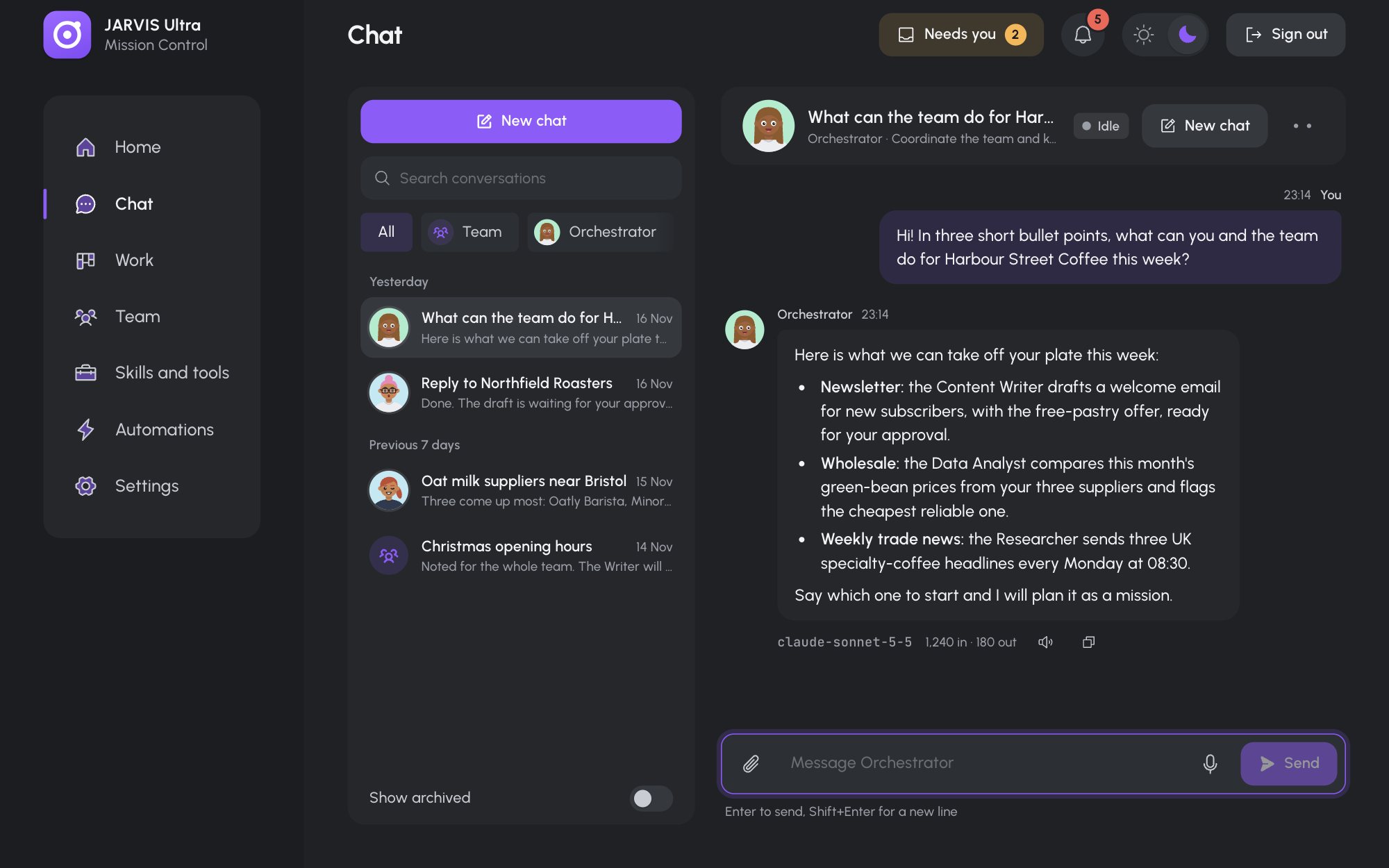
Start a conversation
-
Open Chat and press New chat.
-
Pick who to talk to:
- Whole team: "The Orchestrator answers and hands out the parts". Good for work that spans several skills.
- An agent by name: for a question in its field, for example the Researcher for supplier prices.
A paused agent is greyed out with "Paused. Resume it on the Team page first."
-
Type your message and press Enter (Shift+Enter starts a new line). The agent's reply streams in under "Name is answering…" with a clock. Most replies take under a minute; a long task can take several.
Nothing is saved until you send the first message, so an empty draft never clutters the list. To start a chat from elsewhere, press Chat on an agent's card on Team.
Attach files
Press Attach files, drag files onto the conversation, or paste them. You can attach up to 8 files of 20 MB each to one message. The agent gets the first image to look at and the paths of the other files to read. Wait until each file has finished uploading before you send.
Stop or retry an answer
- While the agent answers, Send becomes Stop. Pressing it ends the answer. "You stopped this answer. What the agent already did with its tools stays done."
- When an answer fails, the thread shows why and offers Send your message again. The reasons are listed in When an agent does not answer.
An agent answers one message at a time. If it is busy in another conversation, the message box says "Name is answering in "title"" with Open it; send again when it finishes.
Find a conversation
- The list groups conversations by Today, Yesterday, Previous 7 days and Older. A bold title has something you have not read.
- The chips All, Team and one per agent narrow the list.
- Search conversations looks through titles and message text once you type two characters. Clicking a result opens the conversation at that message.
- Show archived brings back archived conversations.
The Chat item in the sidebar shows how many conversations hold something new.
Rename, archive or delete
Open the conversation and use its header:
- Click the title to rename it. Enter saves, Escape cancels.
- Conversation menu > Archive hides it from the list. Sending a new message unarchives it.
- Conversation menu > Delete removes its messages and the files only it holds, after you confirm. Its tokens and cost stay in Settings > Usage.
Approvals in a conversation
When an agent asks for your approval during a chat (for example, a draft email it wants to send), the same card as on Home is pinned above the message box, and the reply points to it. Approve, edit or send it back right there. After you decide, a line under the reply follows what happens: "Approved, carrying out…", then the outcome. See Decide what the team asks.
Lines that start with JARVIS Ultra are notes from the dashboard, such as what an approved draft did. The agent sees them with your next message, so it can take the next step.
Talk instead of typing
The microphone button beside Send starts talk mode: speak, pause, and your words are sent. Read aloud under a reply speaks it. See Talk to your agents.