How-to guides
Add a model provider
A provider is where your agents' models come from: Anthropic, OpenAI, OpenRouter and others, or any server that speaks the OpenAI API. Add a provider's key once and every agent can use its models.
Add a provider
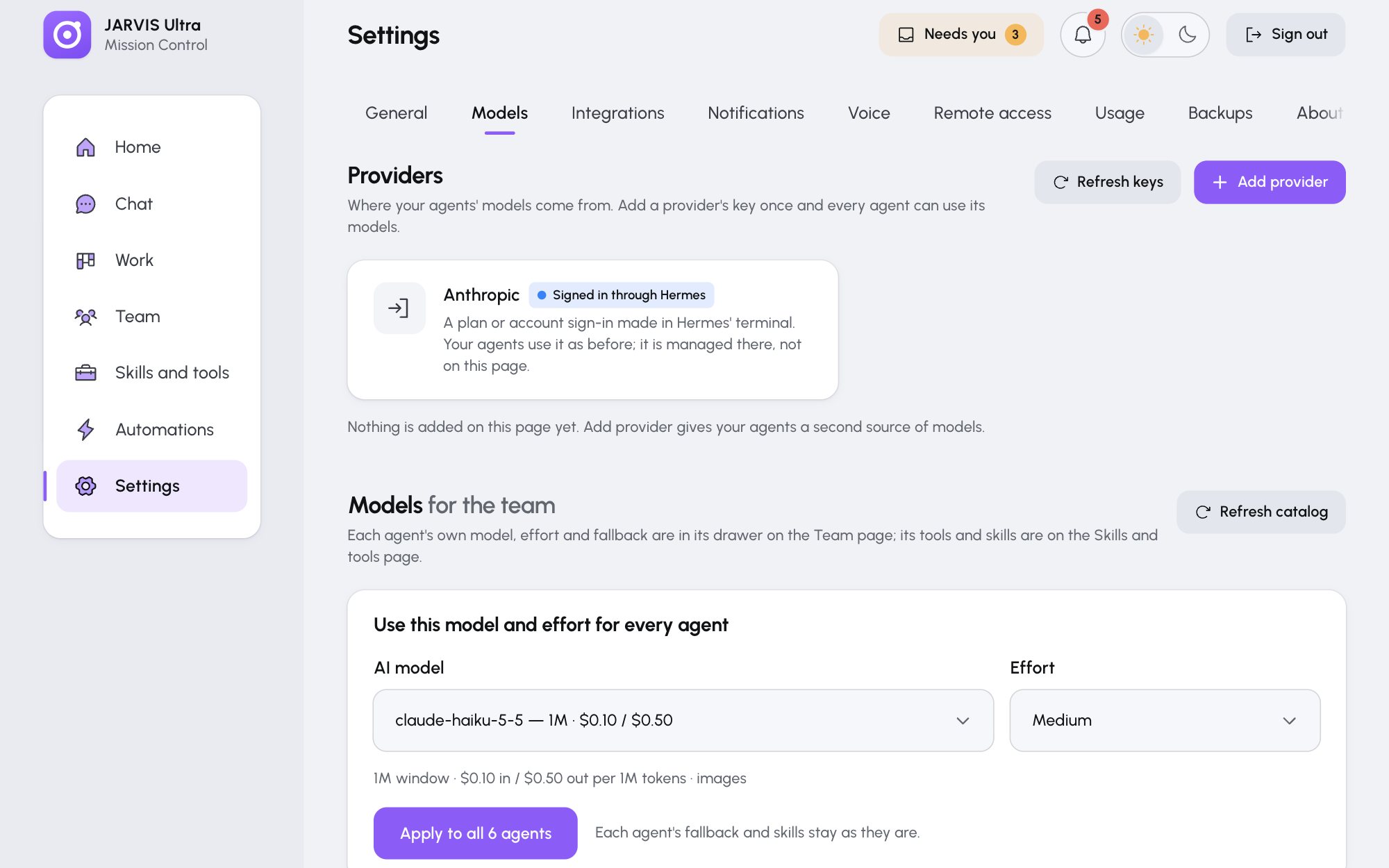
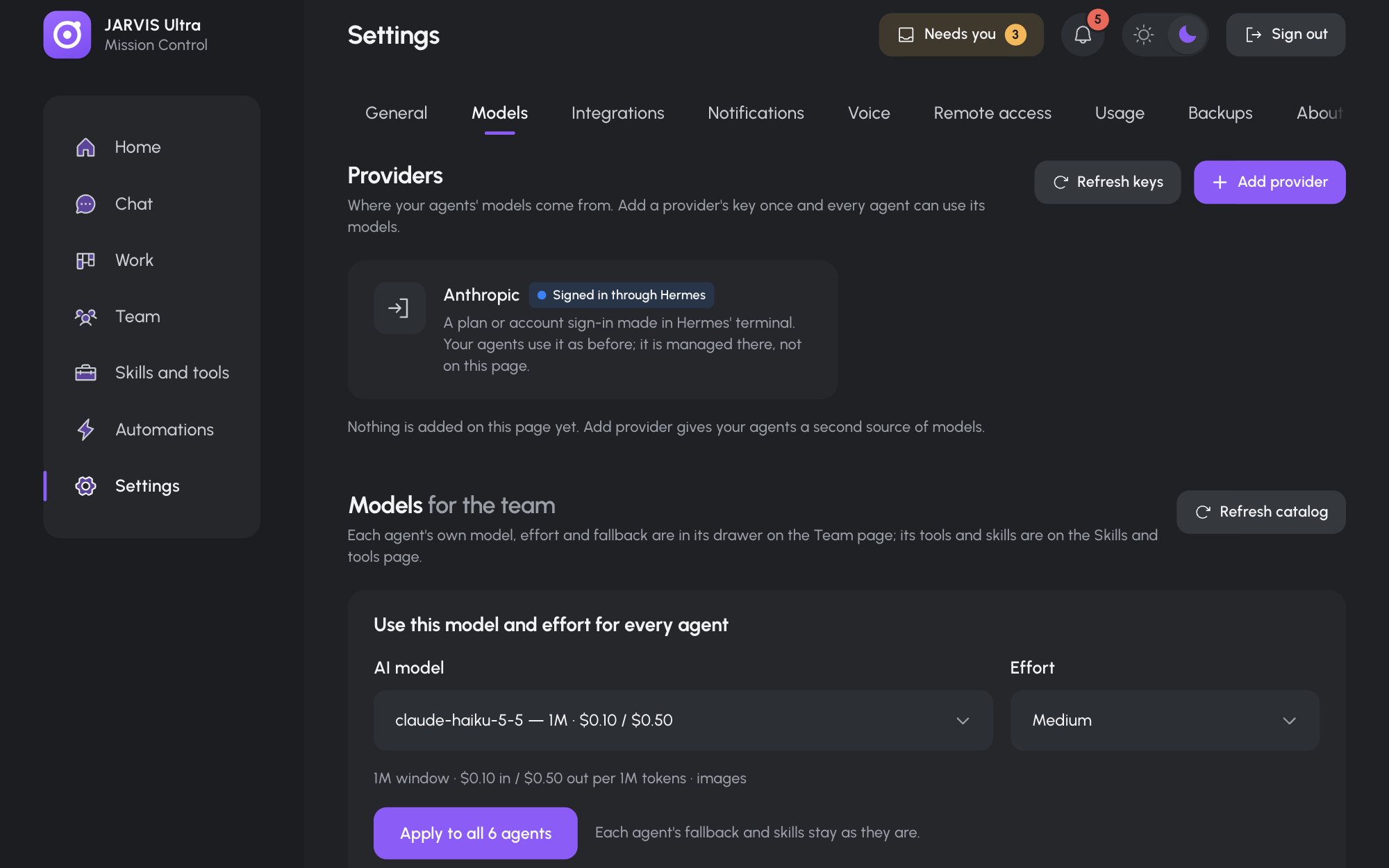
- Open Settings > Models. The first section is Providers.
- Press Add provider and pick one: Anthropic, OpenAI, OpenRouter, DeepSeek, Google Gemini, xAI, Groq, Mistral, Ollama on this computer or Any OpenAI-compatible address.
- Paste the key in the key field, for example
<your-anthropic-key>. The form links to the provider's key page ("Get a key at …") and says how such a key starts (an Anthropic key starts withsk-ant-). - Press Test and save. The dashboard asks the provider for its model list. A refused or unreachable key shows its reason under the field, keeps what you typed and saves nothing. An accepted key is saved, and the new card shows "Giving the key to N agents…" for a few seconds, then Ready.
The provider's models now appear, under its name, in every model picker: the agent's Model tab, Models for the team and the Hire form. Next, choose each agent's model.
Add a server by its address
For a server of your own, or a service not on the list, pick Any OpenAI-compatible address and fill in:
| Field | Example |
|---|---|
| Name | labbox (1 to 24 lowercase letters, digits or hyphens) |
| Base address | https://llm.example.com/v1 |
| No key needed | On for a server on your own network that asks for no key |
| Key | The server's key, unless No key needed is on |
| Model ids | Only when the server does not list its models, for example llama-3.3-70b |
Then press Test and save. For Ollama on this computer, use Ollama on this computer instead (Run agents on local models with Ollama).
Read a provider card
Each card shows the provider's status, how many models it offers, when it was last tested and which agents use it.
| Status | Meaning |
|---|---|
| Ready | The key works and every agent has it |
| Key needed | No key is saved yet |
| Key refused | The provider stopped accepting the key; the card shows its reason |
| Cannot reach | The provider did not answer |
If some agents did not get the key, the card names them with Try again.
Test, replace or remove a key
- Test checks the saved key again.
- Replace key opens a key field on the card. The old key keeps working until the new one passes the test.
- Remove asks once, then deletes the key from the dashboard and from every agent. It is off while any agent uses the provider for its model or fallback; the tooltip names them. Move those agents to another model first.
- Refresh keys in the section header gives every key to every agent again, for example after you changed a profile by hand.
A key you added in the terminal
A key you gave Hermes with hermes auth add shows as a card marked Signed in through Hermes. It works as it is. For an API key, Move the key here brings it onto this page, so Test, Replace key and Remove work for it. A subscription sign-in (OAuth) stays in Hermes.
Where keys are kept
Each key is saved in data/provider-<name>.key, readable only by your user, and written into each agent's Hermes .env file. Keys are never put in backups. See Privacy and security.