How-to guides
Choose each agent's model
Every agent runs on its own model, with an optional fallback for when that model fails. A model comes from a provider you added in Settings > Models (Add a model provider).
Set one agent's model
-
Open Team, click the agent and choose the Model tab.
-
Under Primary model, pick the Primary AI model. The list groups models under their provider, and each option shows its context window, its price per million tokens and anything it cannot do (for example "no tools").
-
Pick an Effort. "More effort thinks longer: better on hard work, slower and costlier."
-
Press Save.
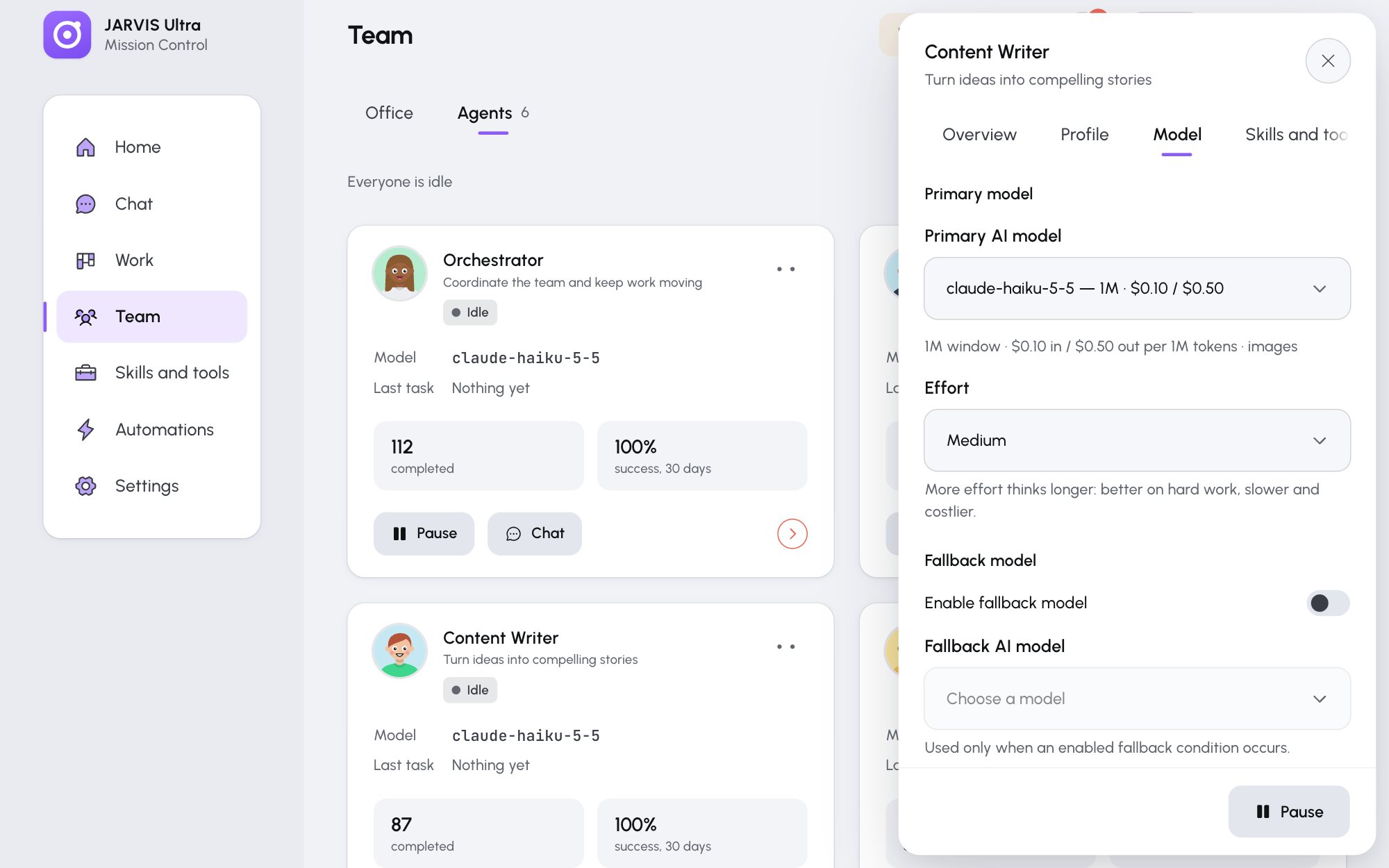
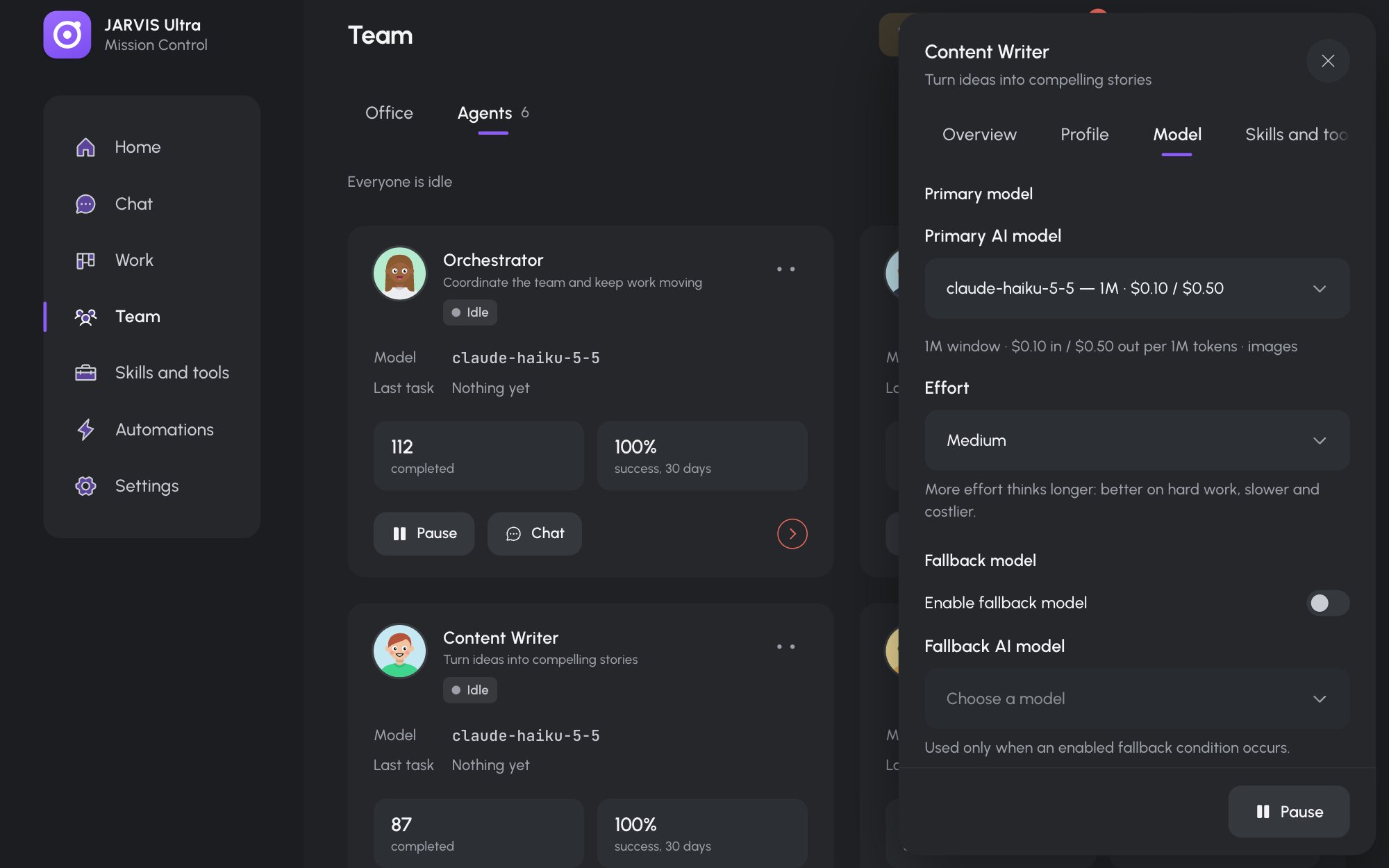
The Model tab in an agent's drawer: the primary model and effort, then the fallback.
The agent's next turn starts a fresh session on the new model, carrying the last 12 lines of the conversation so it keeps the thread.
A model that runs on this computer through Ollama is checked when you save: the button reads "Checking model with Ollama…" for up to two minutes. See Run agents on local models with Ollama.
Add a fallback
- On the same tab, switch on Enable fallback model.
- Pick a Fallback AI model. It must differ from the primary model; a model from another provider covers a provider outage too.
- Set Retries before fallback (0 to 5, default 1).
- Under When should the fallback take over?, tick Rate limit, Provider unavailable or Response timeout.
- Press Save.
A turn that fails tries again as many times as Retries before fallback says, then once on the fallback model, whichever conditions you ticked. If the fallback fails too, the message names both errors. An answer you stopped is never retried.
Ticking Rate limit or Provider unavailable also hands the fallback to Hermes itself, so it can switch mid-turn. Ticking Response timeout makes Response timeout (seconds) (10 to 1,800) the limit for each try. Without it, a try may take up to 300 seconds, or 1,800 on a local model.
Give every agent the same model
Open Settings > Models, go to Models for the team, pick the AI model and Effort under Use this model and effort for every agent, and press Apply to all N agents. Refresh catalog reloads the model lists from your providers.
Pick a model
- A stronger model for the Orchestrator pays off: it plans every mission and answers the Whole team.
- Agents need a model that can call tools. A model marked "no tools" cannot use apps, skills or files.
- Settings > Usage shows what each agent's model costs you: Track usage and cost.