How-to guides
Decide what the team asks
Anything an agent would send, post, change or spend comes to you first. These requests wait in the Decision queue on Home, oldest first, and the Needs you counter in the top bar shows how many there are.
Answer a request
-
Open Home, or press Needs you in the top bar.
-
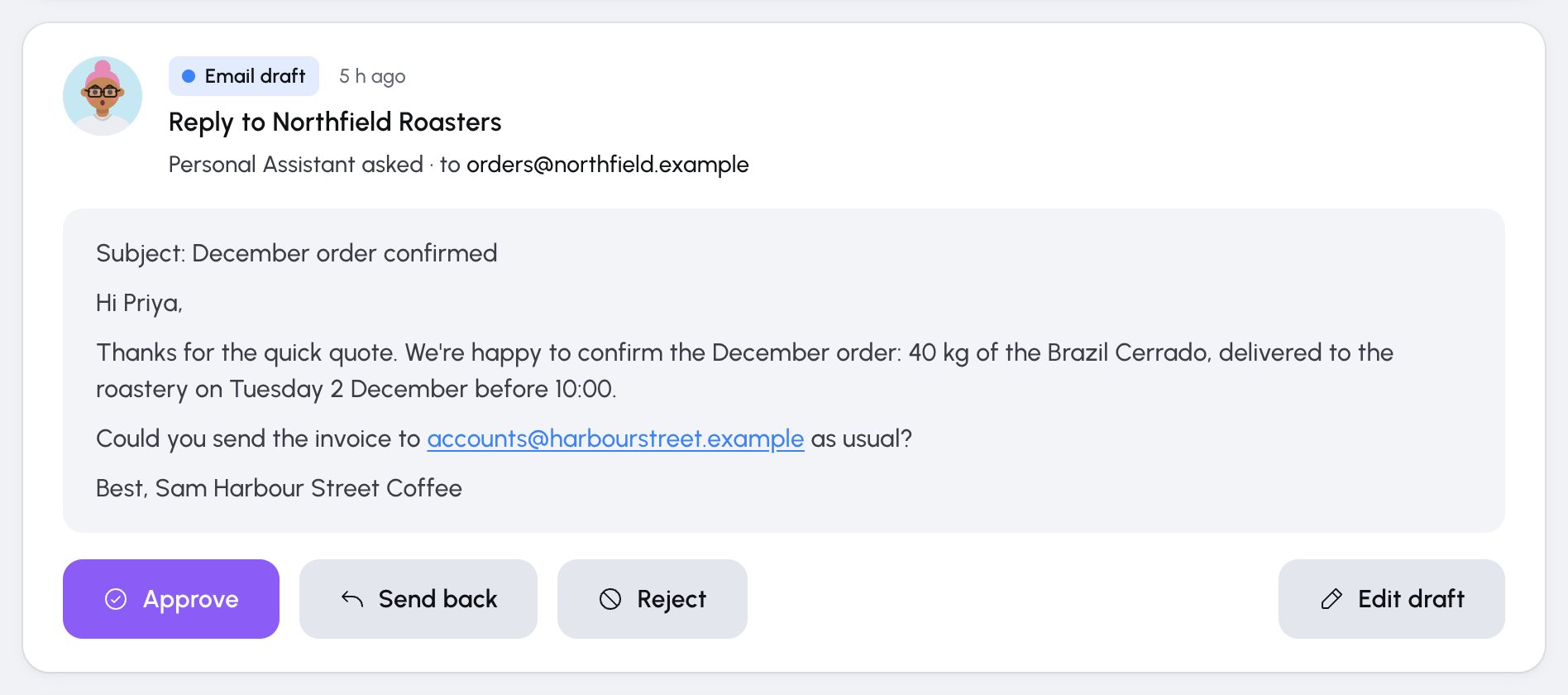
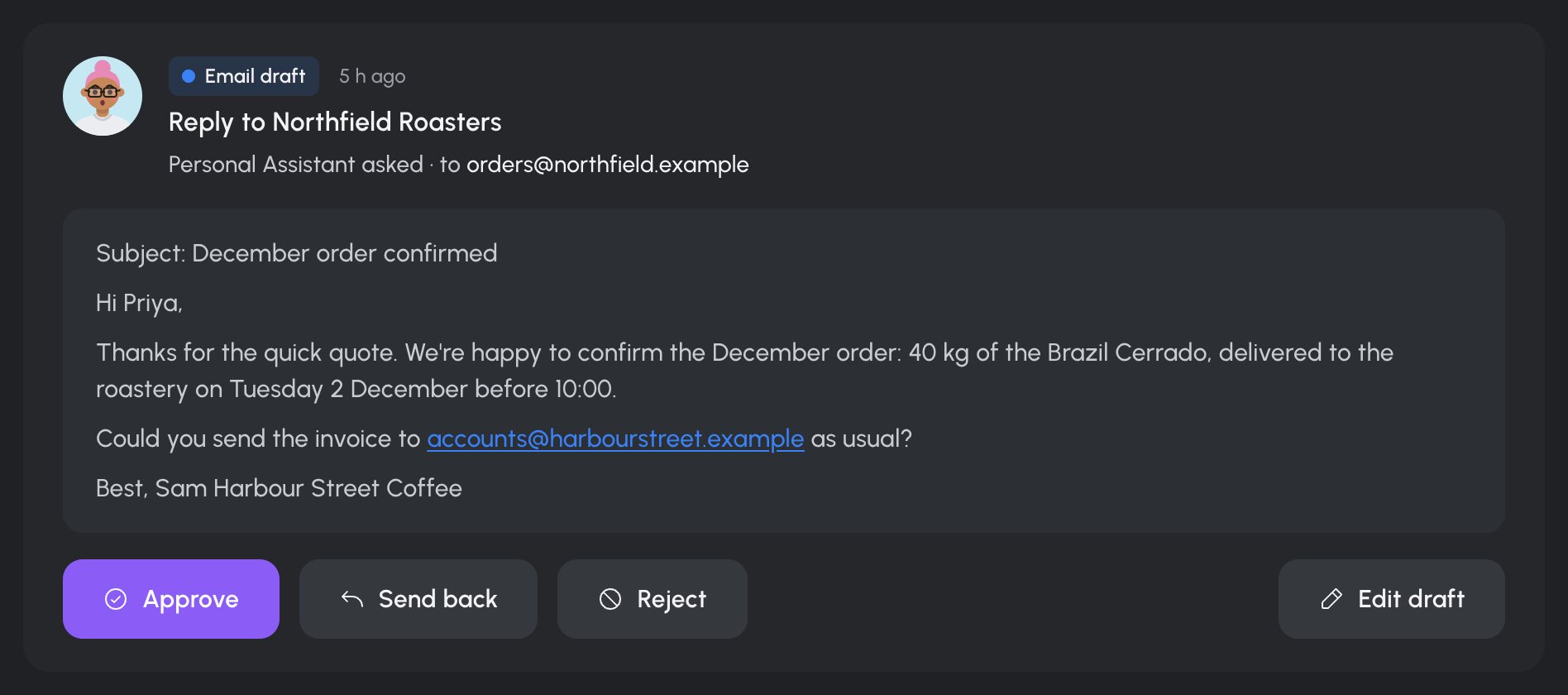
Read the card: its kind, who asked, where it would go ("Personal Assistant asked · to Gmail") and the text. Show the whole thing opens a long one.
-
Press one of the three buttons. They depend on the kind of request:
Kind Buttons Email draft, Social post, Calendar change, Tool call Approve, Send back, Reject Automation result (from a rule) Save to Docs, Send back, Discard Mission plan Approve plan, Replan, Cancel mission Mission result Accept result, Send back, Stop mission A confirmation names what happened, and the card leaves the queue.
What each answer does:
- Approve tells the agent to carry it out now, exactly as approved. It has 15 minutes to do it. The outcome, with any link or id the app gave back, is recorded in Decision history and as a note in the agent's conversation.
- Send back asks for a new draft. It needs a note: write what should change, for example
Make it warmer and drop the second paragraph.The new draft comes back as a new card. - Reject records "Nothing was sent". Nothing is carried out.
Edit a draft before approving
- Press Edit draft.
- Change the text in Your version. "Approve sends this text, word for word."
- Press Approve (or Accept result for a mission result).
Your edits are saved as you type, so a reload or a second tab keeps them. The card shows Edited by you.
Requests inside a chat
A request that comes from a chat turn also appears in that conversation, pinned above the message box. It is the same request: answering it in either place clears both. If you answer in one window and then try in another, the second says "That item is no longer waiting. It may have been decided in another window."
Sign-in cards
Some cards ask you to sign in rather than decide: "Finish connecting Gmail", or "Sign in to server for agent" for an MCP server. Press Open the sign-in, finish in the new tab, and the card clears on its own. See Connect apps through Composio and Add an MCP server.
Look back at past decisions
Decision history at the bottom of Home keeps your answers. Press Show, then filter by Every agent or Every kind. A row opens the decision with its destination, your note, the outcome and the version you approved.
Get told when something waits
Requests can reach your phone, browser or Telegram, with quiet hours. See Get alerts on your phone, browser and Telegram.