How-to guides
Back up and restore
A backup is one file holding the team, its memories and documents, missions, schedules, rules, your skills and your settings. Keys never go in. Backups are kept on this computer in data/backups/; download one to keep a copy somewhere else.
Back up now
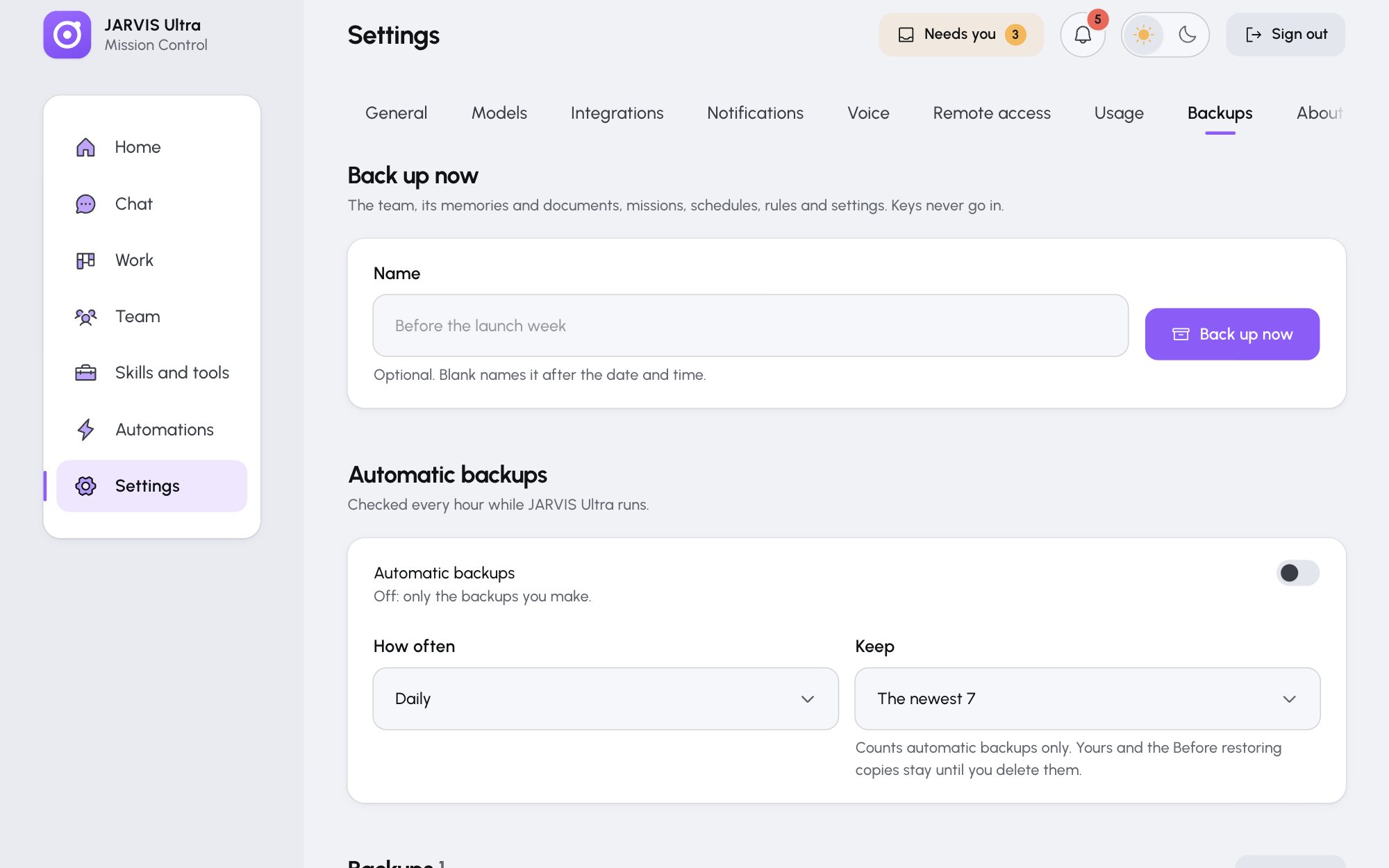
- Open Settings > Backups.
- Under Back up now, type a Name if you like (blank names it after the date and time), for example
Before spring menu changes. - Press Back up now.
The backup appears in the list with its kind (Yours), date, size and what it holds.
Back up automatically
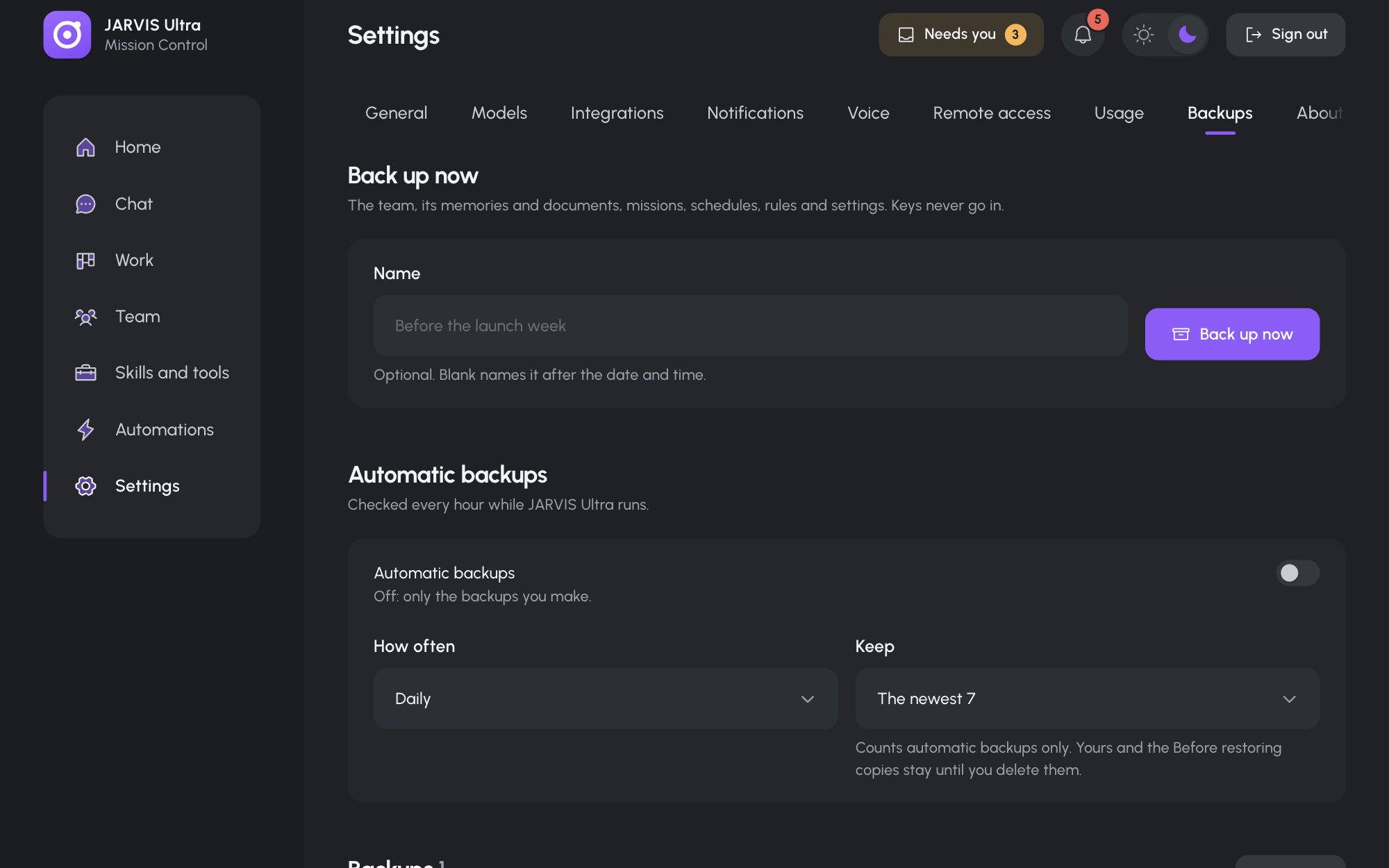
Under Automatic backups, switch on Automatic backups, pick How often (Daily or Weekly) and how many to Keep (The newest 3, 7, 14 or 30). Changes save at once, and the first backup is made within seconds.
The keep count only removes old automatic backups. Your own backups and the Before restoring copies stay until you delete them. A failed automatic backup rings the bell.
Restore
-
In the list, press Restore on a backup.
-
Choose Everything, or Only some parts and tick them:
Part What comes back Agents & memories Identity, memories, model settings, the skills an agent made itself and the chats, for the agents you pick Documents Every team document. The current ones are moved aside to data/docs-aside/, not deleted.Missions Missions, the Board's tasks, and the approval queue with its history Schedules Jobs and their run history Automations Rules and their runs. Every rule starts fresh. Skills Your own skills, every kept version, and which agents have them Settings Preferences, your brief, alerts, voice and models. Never keys. -
Type
RESTOREto confirm and press the restore button.
A Before restoring backup of how things are now is made first, so you can go back. A restore waits until no agent is working: it refuses while an agent is mid-turn, a mission is planning or running, or a job is running, and says which. This computer's keys stay as they are.
A mission the backup caught while it was planning or running comes back as Failed; press Replan to start it again.
Move a backup to another computer
Press Download on a backup to save the file. On the other JARVIS Ultra, open Settings > Backups, press Upload and pick the file (up to 300 MB). Then restore it as above.
Keys, sign-ins and connections are not in a backup. On the new computer, add your provider keys again (Add a model provider), paste the Composio key and reconnect apps (Connect apps through Composio), add MCP servers again, and allow alerts on each device.
Delete a backup
Press Delete on a backup, then confirm.