How-to guides
Track tasks on the Board
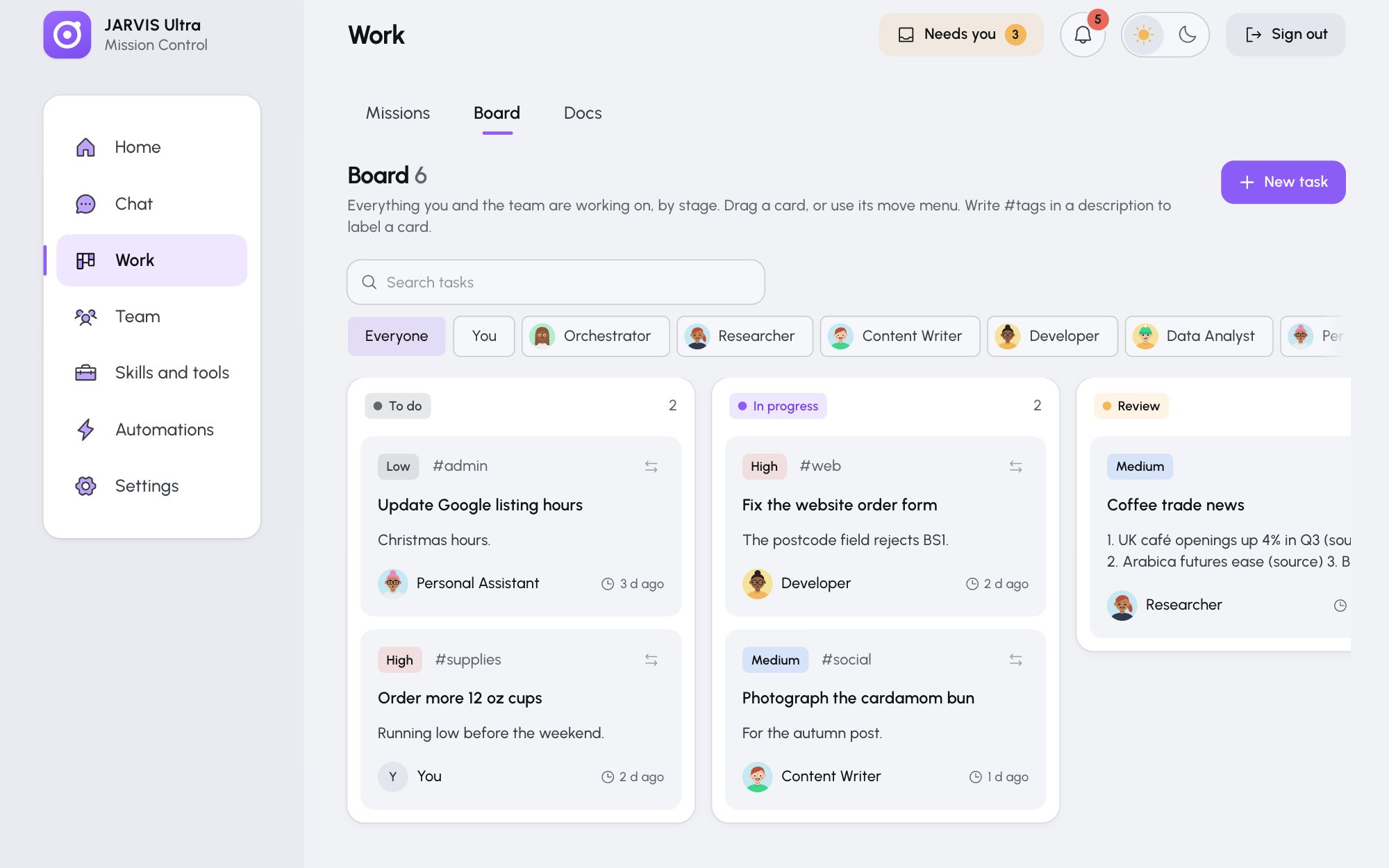
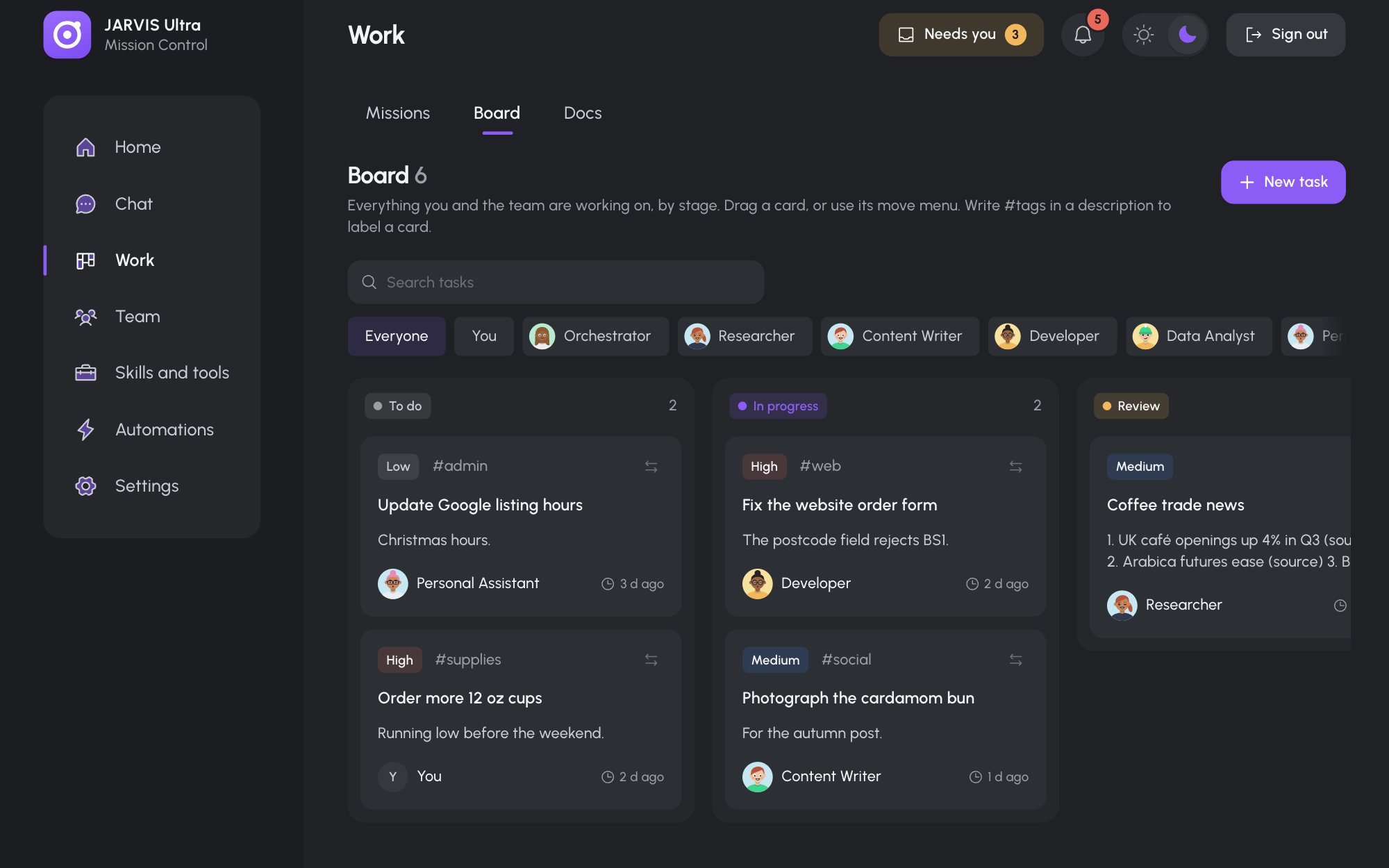
Work > Board is a simple task board with four columns: To do, In progress, Review and Done. You add tasks yourself, and every scheduled job run puts its result here in Review.
Add a task
- Press New task.
- Fill in Title (required), Description, Agent (You or an agent) and Priority (High, Medium or Low), and pick a Status.
To label a card, write tags in the description, for example
Call the milk supplier about Friday's order #suppliers #urgent. The tags show as labels on the card. - Press Save.
The board is a list for you and the team to look at. Putting a task on an agent's name does not make the agent start on it; to give an agent work, use a chat, a mission or a scheduled job.
Move, edit or delete a task
- Drag a card to another column, or use its move menu ("Move title to") with the keyboard or on a phone.
- Click a card to open it, change it and press Save.
- Delete, then Delete for good, removes it.
A lightning mark on a card means a schedule or a rule put it up. Its drawer names the run it came from.
Find a task
Search tasks matches titles, descriptions and agents. The chips Everyone, You and one per agent show one person's cards.
If someone changed the board in another tab while you edited, a notice asks you to Reload before saving, so nobody's change is lost.