How-to guides
Create a trigger rule
A rule watches for something (a new email, a Slack mention, a changed web page, a file in a folder, a time of day) and asks an agent to act on it. The result goes where you choose: to your approval, to Docs, to Telegram, to the Board, or into a new mission.
Rules that watch Gmail, Slack, Google Calendar, GitHub or forms need that app connected first (Connect apps through Composio). Folder, web page and time-of-day rules need nothing else.
Describe a rule in your words
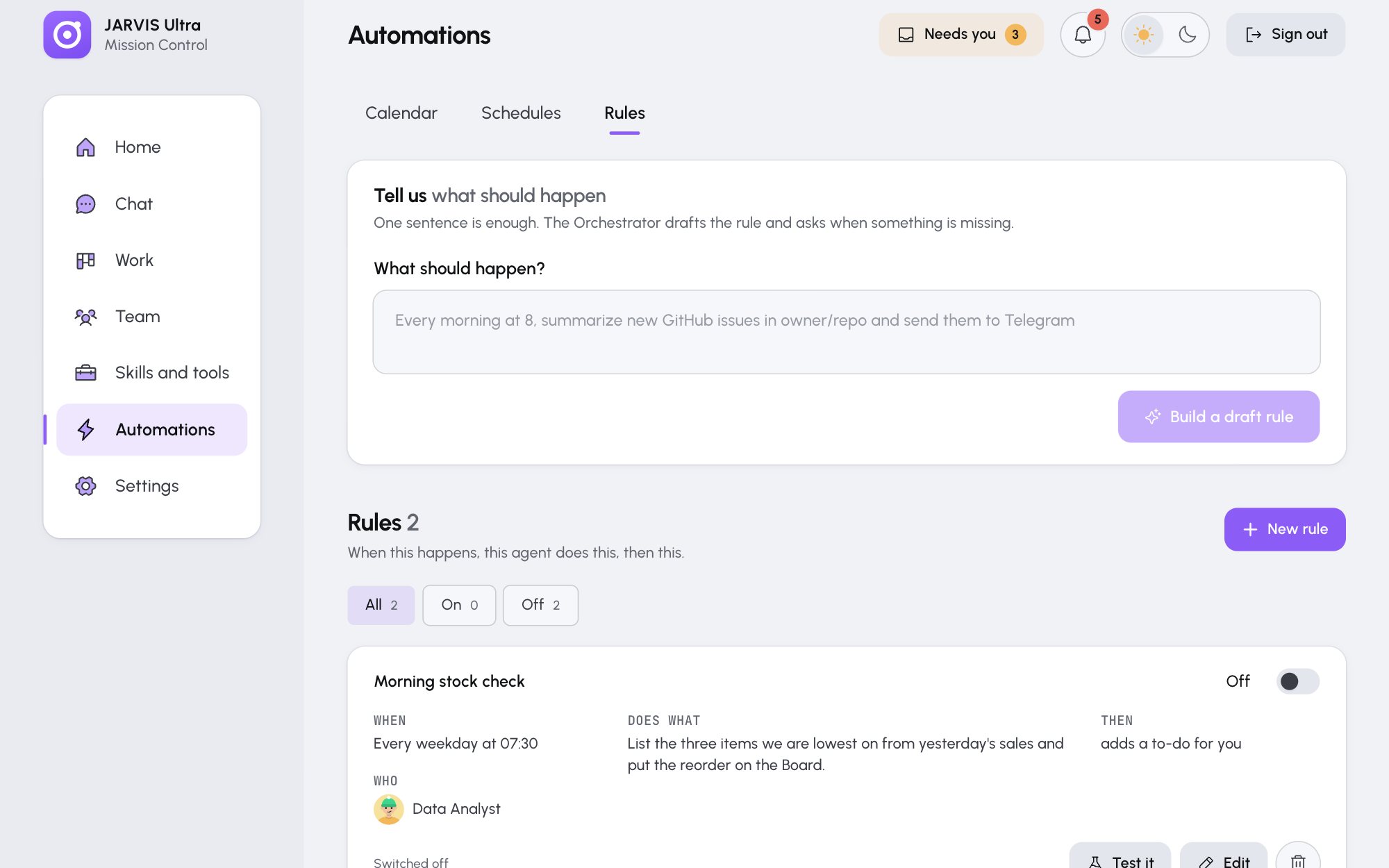
- Open Automations and choose the Rules tab.
- Under Tell us what should happen, write the rule in What should happen?, for example:
When my roaster emails about a delivery, draft a short reply confirming the date and ask me first. - Press Build a draft rule. The Orchestrator writes the rule in one turn. If it needs to know something, it asks One question:; type Your answer and press Answer and build, or Open the draft as it is.
- The rule opens in the drawer. Check it, then save it (below).
Build a rule by hand
Press New rule, or pick one of the ready-made rules under Ready when you are (A reply, ready for you, Mention to action, Watch the competition, Issue to mission) with Use this rule. Then fill in the drawer:
-
Rule name, for example
Roaster replies. -
01 When: pick the Trigger, then its details.
Trigger Details New email, Email from a sender Gmail label (optional), Sender is (for example orders@roaster.example), Subject contains (optional)Slack message Channel (optional), Message contains (optional) Slack mention none New calendar event Calendar (optional) New GitHub issue Repository, as owner/nameNew form submission Form id File in a folder Folder: a full path on this computer Web page changes Page address, starting with https://On a schedule Time of day, in the time zone from Settings > General Only on weekdays skips Saturday and Sunday.
-
02 Who: the Agent that acts, for example the Content Writer.
-
03 Does what: Your instructions, for example
Draft a two-line reply confirming the delivery date. Keep my usual sign-off. -
04 Then: Send the result to:
Destination What happens Approval Inbox The result waits on Home as an Automation result card: Save to Docs, Send back or Discard Docs The result is published in Work > Docs Telegram The result is sent to your Telegram (alerts) To-do The next step goes on Work > Board Mission A mission is planned, and its plan waits for your approval -
Read the sentence under the form, which says the whole rule in plain words. Leave Switch on after saving on and press Create rule.
How a rule runs
- Rules are checked every 30 seconds, each at its own pace: email and Slack every 2 minutes, calendar, GitHub and forms every 5, folders every minute, web pages every 15.
- The first check only learns what is already there, so a new rule never acts on old mail.
- At most three new events run per check.
- Each run is one agent turn (a mission destination starts a mission instead) and spends credits.
Test, switch off or delete a rule
On the rule's card:
- Test it runs the rule on the newest match from the last 7 days. "Nothing matches this rule right now." means there was none.
- The On / Off switch starts and stops it.
- Edit opens the drawer; the delete button asks Delete this rule?.
A card marked Problem shows what went wrong at its last check, for example an app that is no longer connected. Not connected means its app needs connecting on Skills and tools > Apps. Runs of every rule are in Run history at the bottom of the page.