How-to guides
Schedule a recurring job
A job asks one agent to do the same task on a schedule: a Monday news round-up, a daily inbox summary, a monthly report. Each run's reply lands on Work > Board in the Review column.
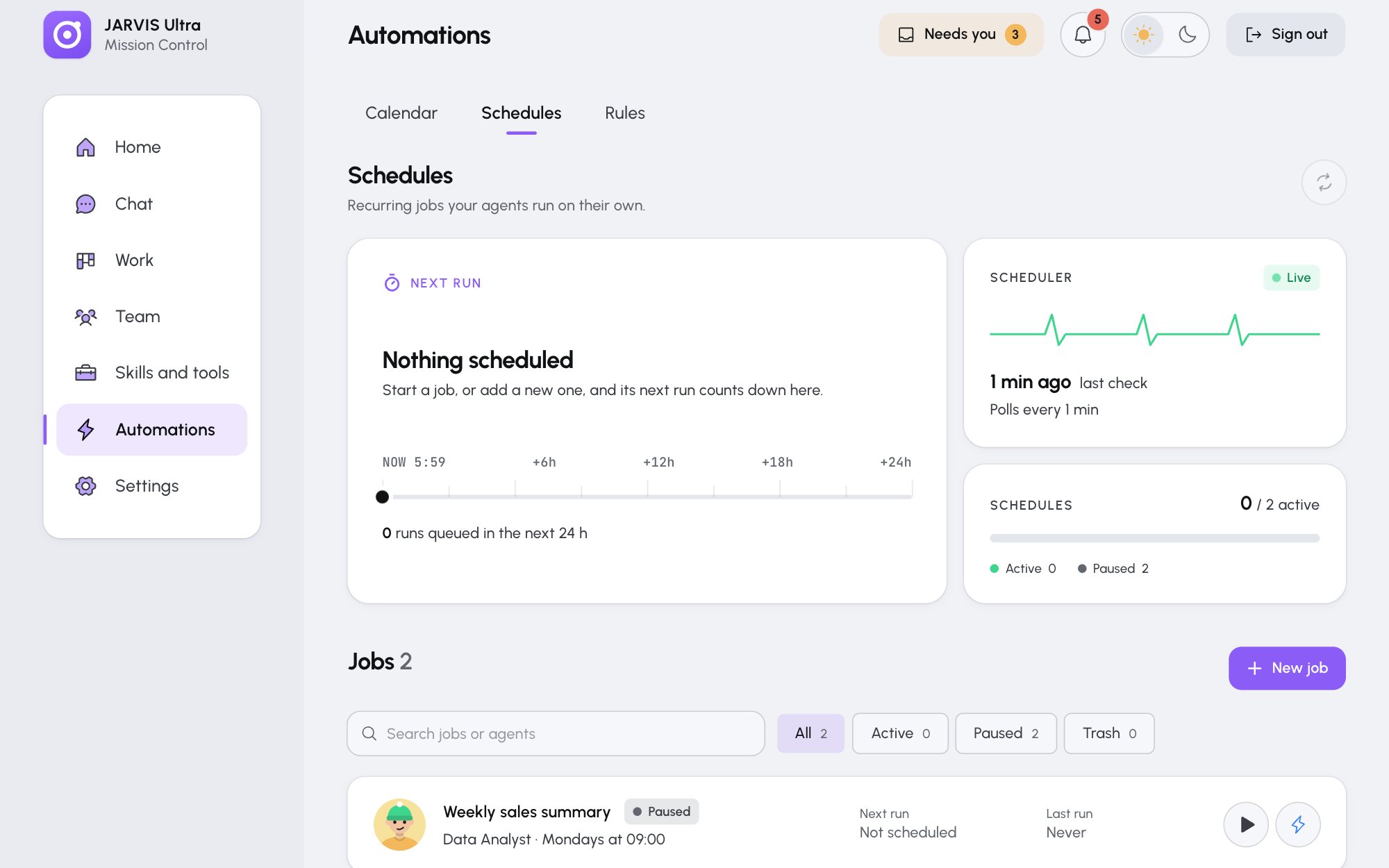
Create a job
-
Open Automations, choose the Schedules tab and press New job.
-
Fill in the form:
Field Example Name Daily order checkAssigned agent Personal Assistant Task brief List today's supplier deliveries from my calendar and flag anything that clashes with opening hours.What the agent does each time.Priority High, Medium or Low: the priority of the card it puts on the Board Schedule Every hour, Every day, Weekdays (Monday to Friday), Once a week, Once a month or Custom cron Time, Day, Day of the month or Minutes past the hour Depending on the schedule, for example 07:15Time zone The zone the times are in, for example Europe/London. New jobs start with the one in Settings > General. -
Check Next three runs under the form.
-
Press Create job. New jobs start paused.
-
Press Start when it looks right.
Custom cron takes five fields: minute, hour, day, month, weekday. For example 15 7 * * 1-5 runs at 07:15 on weekdays. Runs must be at least an hour apart, so the minute field holds one value.
Each run is one agent turn and spends credits. The agent starts each run fresh, without the earlier runs' conversation; what it saved in its memory still counts.
Try a job now
Press Run now in the job's drawer, or the lightning button on its row, on Home under Up next, or on a run's card in the calendar. Pressing twice still runs once. A job whose last run is still going says "Name is already running. Wait for it to finish." Run all above the list runs every active job once.
Follow the runs
- Home > Up next shows the next three runs.
- Calendar shows a week (or a day) of runs, each marked Planned, Running, Finished or Failed with the agent's face. Click a run for Run now, Open job or Open the board. The chips filter by agent.
- Run history, under every Automations tab, lists every run of jobs and rules. Press Show; the header counts runs, running and failed in the last 24 hours, and "N failed" opens the failures. A row opens the run with its model, tokens, cost, output and any error.
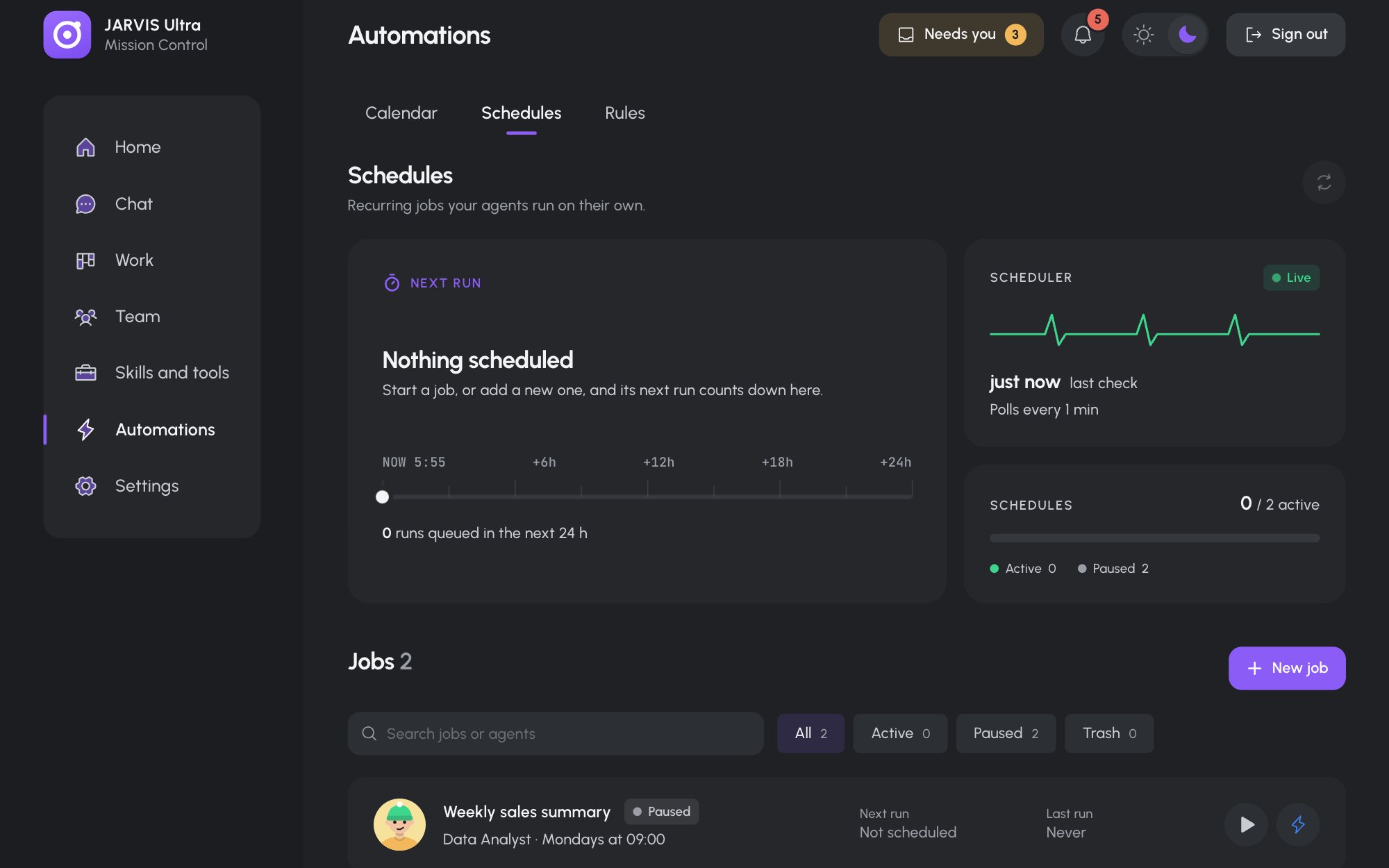
- The status cards on Schedules show the Next run, whether the Scheduler is Live, and how many jobs are active.
A failed run rings the bell and, if you set up alerts, reaches your phone. A finished run rings the bell only.
Change, stop or remove a job
Open the job from the list, change it and press Save. Stop pauses it; Start puts it back on its schedule. Move to Trash, then Move to Trash?, removes it; the Trash filter keeps it until you Restore it.